
Please visit our new TrackAbout Knowledge Base at https://supportkb.trackabout.com for the most-up-to-date documentation on TrackAbout and TrackAbout Mobile.
Asset Registration (Add New)
NOTE: This page is a Work in Progress
Summary
Registering your assets is fundamental to getting started with TrackAbout. Registration, often referred to as "Add New" is the process of collecting unique information about your assets, tagging/barcoding your assets, and entering the data into TrackAbout.
TrackAbout supports ways to register your assets through both mobile and website tools.
Registering Assets (Mobile Device)
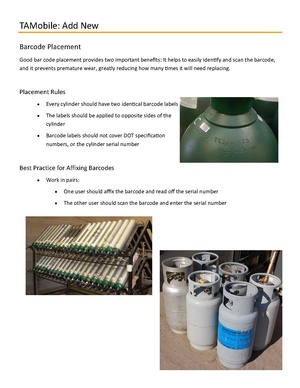
Most clients choose to use one of our mobile options (TAM6 or Smartphone) to register their assets. During your implementation phase, you will define what pieces of unique information should be collected for each asset.
Required information for all TrackAbout registration processes include:
- Barcode
- Serial Number (not technically required but absolutely recommended)
- Product Code
- Ownership
However, to benefit from TrackAbout's inventory, reporting capabilities, business rules and workflows, we recommend you consider collecting additional pieces of asset information. Such as:
- Manufacturer
- Manufacturer Date
- Ownership
- Last Test Date
- Capacity (or Size)
-NOTE This type of custom asset information is collected during the registration process through the use of the Dynamic Forms module.
Online and Offline Mode
TrackAbout offers an Offline and an Online mode for Add New. This indicates whether handheld device have access to the internet (via Wifi or Cellular) when conducting Mobile Actions.
Add New - Offline has two different modes of operation, depending upon configuration. We call them Detailed and, well, not detailed.
In Detailed Mode, a single asset is added at a time and the record is saved containing just the one asset. More asset properties are collected in the Detailed mode.
In Not-Detailed Mode, some basic asset details are collected like the classification and ownership. The user then scans multiple assets collecting barcode and serial number data for each.
Secondary Add New
An Add New can also be performed from within other actions. When this happens, we call it a Secondary Add New.
This scenario happens when a user is doing some other kind of action and realizes he/she needs to scan an asset with no barcode. At this time, the application allows the user to pause their current action, perform an in-line, NON-LOCATION-SETTING Add New, and then return to their original action. (Non Location Setting means the action will not change the asset's location. Where ever TrackAbout thinks this asset is at the time of the action will not change).
The application saves the Secondary Add New record a few seconds prior to the primary action. We save it before the primary action because the Add New will create and classify the asset, and we want that asset created and classified prior to the saving of the primary action. The Secondary Add New is also non-location-setting, because the primary action COULD be location setting, and we don't want to move the asset around prior to a potential location-setting action.
If an accounting adjustment record is going to get created as a result of the primary action, we don't want that accounting adjustment to appear due to the Secondary Add New. We want it to appear due to the primary action.
When the client configuration ‘Use Manufacturer To Restrict New Assets’ is enabled a ‘Cyl Manufacturer’ field is also displayed on the first screen along with a text box where we can scan/key in a Barcode or Serial Number. (This is flow seen by Clients using TAM6)
TrackAbout also provides the ability to capture Valve Information.
Custom Information (specified by the client) can be collected through the "Add New" process. Review module information for Dynamic Forms
Add New features
TrackAbout provides lots of options for how to configure your registration process. Some of these options are supported by add-on modules. In these cases, the required modules will be in parentheses after the feature.
- Require key fields for uniqueness.
- Collect different sets of unique information based on Asset Type (Dynamic Forms)
- Register containers/pallets ( Palletization)
- Register Bundles/Packs
- Verify Barcode, Serial Number, Manufacturer Date prior to save
- Collect Valve Information (Dynamic Forms)
Add New Asset (Website)
Add News performed directly from the main menu are Location Setting.