
Please visit our new TrackAbout Knowledge Base at https://supportkb.trackabout.com for the most-up-to-date documentation on TrackAbout and TrackAbout Mobile.
Difference between revisions of "JULY / AUGUST 2022 RELEASE NOTES"
(Created page with " <div> <h2>Operating System Requirement Change for TrackAbout Mobile 7 (iOS)</h2> <p><b>Apple iOS 13.4 or later is now required to run TrackA...") |
|||
| Line 25: | Line 25: | ||
</ul> | </ul> | ||
<p>Of course, you still have the option to use Save (in the upper right corner). </p> | <p>Of course, you still have the option to use Save (in the upper right corner). </p> | ||
| − | < | + | <div class="note"> |
<p><b>Use Save</b> when you’re adding a single asset or are done adding assets that share the same information. </p> | <p><b>Use Save</b> when you’re adding a single asset or are done adding assets that share the same information. </p> | ||
<p><b>Use Save and Add More</b> when you’re adding more than one of an asset and you want to use the same information for all of them.</p> | <p><b>Use Save and Add More</b> when you’re adding more than one of an asset and you want to use the same information for all of them.</p> | ||
| − | </ | + | </div> |
<p> </p> | <p> </p> | ||
<p>Here’s how it works: </p> | <p>Here’s how it works: </p> | ||
| Line 85: | Line 85: | ||
</p> | </p> | ||
</div> | </div> | ||
| − | < | + | <div class="note"> |
<p>If none of the labels for a product type have been printed yet, you’ll only see a Print option.</p> | <p>If none of the labels for a product type have been printed yet, you’ll only see a Print option.</p> | ||
<p>If all the labels for a product type have already been printed, you’ll only see a Reprint option.</p> | <p>If all the labels for a product type have already been printed, you’ll only see a Reprint option.</p> | ||
| − | </ | + | </div> |
</p> | </p> | ||
</li> | </li> | ||
<li> | <li> | ||
<p> | <p> | ||
| − | <p>For each product type (Product), tap | + | <p>For each product type (Product), tap plus or minus to select the number of labels to print or reprint (Label Quantity) up to the listed maximum (Max). </p> |
</p> | </p> | ||
</li> | </li> | ||
| Line 100: | Line 100: | ||
<p>If you’re reprinting one or more labels for a product type, you’ll be prompted to enter a reason why you’re reprinting. Tap to enter a reason.</p> | <p>If you’re reprinting one or more labels for a product type, you’ll be prompted to enter a reason why you’re reprinting. Tap to enter a reason.</p> | ||
<div class="imagey"> | <div class="imagey"> | ||
| − | <p | + | <p > |
[[File:Image252.png|center]] | [[File:Image252.png|center]] | ||
| Line 110: | Line 110: | ||
<p> | <p> | ||
<p>You can select one of the existing reasons, or Other to enter a different reason.</p> | <p>You can select one of the existing reasons, or Other to enter a different reason.</p> | ||
| − | + | <div class="imagey"> | |
| + | <p> | ||
[[File:Image253.png|center]] | [[File:Image253.png|center]] | ||
</p> | </p> | ||
| + | </div> | ||
<p class="warning">If you don’t provide a reason, you won’t be allowed to reprint.</p> | <p class="warning">If you don’t provide a reason, you won’t be allowed to reprint.</p> | ||
</p> | </p> | ||
| Line 134: | Line 136: | ||
<div> | <div> | ||
<h2>Easier Location Selection for FOT Customer Actions in TAM7 </h2> | <h2>Easier Location Selection for FOT Customer Actions in TAM7 </h2> | ||
| − | <p>We've added Location search to the Customer Portal (formerly Follow-On Tracking, or FOT) Customer Move Assets and Record Volume Weight actions in TrackAbout Mobile 7, making it easier for your Customer | + | <p>We've added Location search to the Customer Portal (formerly Follow-On Tracking, or FOT) Customer Move Assets and Record Volume Weight actions in TrackAbout Mobile 7, making it easier for your Customer Portal users to select a location.</p> |
<div class="imagey"> | <div class="imagey"> | ||
<p style="text-align: center;"> | <p style="text-align: center;"> | ||
| Line 145: | Line 147: | ||
<h2>Quality-of-Life Enhancements</h2> | <h2>Quality-of-Life Enhancements</h2> | ||
<div> | <div> | ||
| − | <p>< | + | <p><b>Delivery with Order Integration (formerly Paperless Delivery, or POD) on TrackAbout Mobile 7:</b> Orders are now removed from the order list immediately on delivery even if the mobile device is offline, helping prevent orders being inadvertently delivered twice. Previously, delivered orders remained on the list until the next time the device was online.</p> |
</div> | </div> | ||
<div> | <div> | ||
| Line 151: | Line 153: | ||
</div> | </div> | ||
<div> | <div> | ||
| − | <p>< | + | <p><b>TrackAbout.com:</b> We've fixed an issue that kept Working Location from being saved if the selected location was different than the primary location and paperless delivery (POD) was disabled when editing a user.</p> |
<div class="imagey"> | <div class="imagey"> | ||
<p style="text-align: center;"> | <p style="text-align: center;"> | ||
| Line 159: | Line 161: | ||
</div> | </div> | ||
</div> | </div> | ||
| − | + | ||
| − | |||
| − | |||
| − | |||
| − | |||
| − | |||
| − | |||
| − | |||
| − | |||
| − | |||
</div> | </div> | ||
<div> | <div> | ||
<p> </p> | <p> </p> | ||
</div> | </div> | ||
Revision as of 12:55, 25 October 2022
Operating System Requirement Change for TrackAbout Mobile 7 (iOS)
Apple iOS 13.4 or later is now required to run TrackAbout Mobile 7 for iOS on iPhones.
TrackAbout Mobile 7 will no longer be updated or supported on devices running iOS 13.3 or older.
We recommend updating iOS on any devices running TrackAbout Mobile 7 to the latest version to ensure continued compatibility, support, and access to the latest TrackAbout features.
Save and Add More comes to TrackAbout Mobile 7
Adding new assets through TrackAbout Mobile 7 just got faster.
Until now, if you wanted to add multiple assets that share the same information (like product code, ownership, and manufacturer) you’d have to click Add New from the menu and manually fill in the information fields for each asset.
Enter the new Save and Add More feature.

Like Add New’s “classic” Save, Save and Add More creates a new asset, but it also streamlines things by:
-
Returning you to the scanner instead of the menu
-
Retaining per-filled information for appropriate fields
Of course, you still have the option to use Save (in the upper right corner).
Use Save when you’re adding a single asset or are done adding assets that share the same information.
Use Save and Add More when you’re adding more than one of an asset and you want to use the same information for all of them.
Here’s how it works:
-
Tap New Asset.
-
Scan the first asset.
-
Enter the requested information on the screens that follow (tap Next to continue).
-
When you get to the Summary screen, tap Save and Add More to create the new asset and return to the Scan screen.
-
Scan another asset.
-
Confirm the pre-filled information is correct by hitting Next until you get to the Summary screen.
-
Tap Save and Add More to add another asset using the same meta-data or tap Save to stop adding new assets.
Print Lot Labels Upgraded on TAM7 (Android Only)
You can now print and reprint lot labels with Print Lot Labels from the TrackAbout Mobile 7 for Android app.

How it works:
-
Tap Print Lot Labels
-
Scan or select a lot.
-
This brings you to the Print Lot Labels main screen. For each product type in the lot, this screen shows you how many labels need printed for the first time and how many can be reprinted.
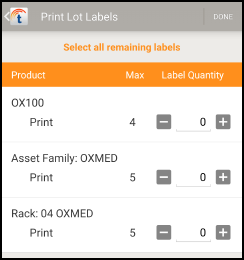
If none of the labels for a product type have been printed yet, you’ll only see a Print option.
If all the labels for a product type have already been printed, you’ll only see a Reprint option.
-
For each product type (Product), tap plus or minus to select the number of labels to print or reprint (Label Quantity) up to the listed maximum (Max).
-
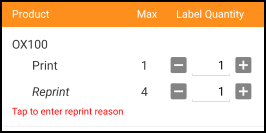
If you’re reprinting one or more labels for a product type, you’ll be prompted to enter a reason why you’re reprinting. Tap to enter a reason.
-
You can select one of the existing reasons, or Other to enter a different reason.
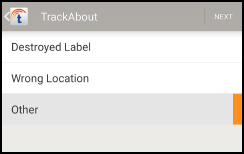
If you don’t provide a reason, you won’t be allowed to reprint.
-
When you’re ready, tap Print Selected Labels.

Printing or reprinting a label generates a record, by product code. The reprint record includes the reason for the reprint.


Easier Location Selection for FOT Customer Actions in TAM7
We've added Location search to the Customer Portal (formerly Follow-On Tracking, or FOT) Customer Move Assets and Record Volume Weight actions in TrackAbout Mobile 7, making it easier for your Customer Portal users to select a location.

Quality-of-Life Enhancements
Delivery with Order Integration (formerly Paperless Delivery, or POD) on TrackAbout Mobile 7: Orders are now removed from the order list immediately on delivery even if the mobile device is offline, helping prevent orders being inadvertently delivered twice. Previously, delivered orders remained on the list until the next time the device was online.
Dynamic Forms on TrackAbout Mobile 7: Custom actions can now be designed to let users scan an asset and trigger a <a href="https://meta.trackabout.com/wiki/Dynamic_Forms" target="_blank">Dynamic Form</a> based on the scanned asset's product code without having to prompt the user to manually select a product code first to trigger the right dynamic form.
TrackAbout.com: We've fixed an issue that kept Working Location from being saved if the selected location was different than the primary location and paperless delivery (POD) was disabled when editing a user.
