
WARNING: The TrackAbout MetaWiki has been deprecated and is no longer being updated.
Please visit our new TrackAbout Knowledge Base at https://supportkb.trackabout.com for the most-up-to-date documentation on TrackAbout and TrackAbout Mobile.
Difference between revisions of "My Setup"
Jump to navigation
Jump to search
| Line 5: | Line 5: | ||
[[File:TA Training P3-1.png|right|alt=Navigation bar on TA Corp webpage.|The Wikipede edits ''[[Login]]''.]] | [[File:TA Training P3-1.png|right|alt=Navigation bar on TA Corp webpage.|The Wikipede edits ''[[Login]]''.]] | ||
*Go to the My Password page | *Go to the My Password page | ||
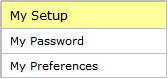
| − | **Type “My Password” in the Jump To box 'or' use the menu bar and click My Setup > My Password<br /> | + | **Type “My Password” in the Jump To box '''or''' use the menu bar and click My Setup > My Password<br /> |
*Reset your password by typing in your old password, then typing in your new password twice | *Reset your password by typing in your old password, then typing in your new password twice | ||
| Line 12: | Line 12: | ||
On any page that displays a table, you can choose how many rows are displayed at a time. | On any page that displays a table, you can choose how many rows are displayed at a time. | ||
*Go to the My Preferences page | *Go to the My Preferences page | ||
| − | **Type “My Preferences” in the Jump To box 'or' use the menu bar and click My Setup > My Preferences<br /> | + | **Type “My Preferences” in the Jump To box '''or''' use the menu bar and click My Setup > My Preferences<br /> |
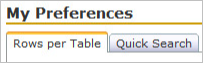
*Make sure the Rows per Table tab is selected | *Make sure the Rows per Table tab is selected | ||
*Enter the number of rows you would like to see at a time in the box | *Enter the number of rows you would like to see at a time in the box | ||
Revision as of 14:42, 11 May 2017
My Setup
My Setup is where you can control your user account, including changing your password and customizing the Quick Search box.
Change Your Password

- Go to the My Password page
- Type “My Password” in the Jump To box or use the menu bar and click My Setup > My Password
- Type “My Password” in the Jump To box or use the menu bar and click My Setup > My Password
- Reset your password by typing in your old password, then typing in your new password twice
Choose Number of Rows Displayed

On any page that displays a table, you can choose how many rows are displayed at a time.
- Go to the My Preferences page
- Type “My Preferences” in the Jump To box or use the menu bar and click My Setup > My Preferences
- Type “My Preferences” in the Jump To box or use the menu bar and click My Setup > My Preferences
- Make sure the Rows per Table tab is selected
- Enter the number of rows you would like to see at a time in the box
- Click Save
Customize the Quick Search Box
- Go to the My Preferences page
- Type “My Preferences” in the Jump To box
- Use the menu bar and click My Setup > My Preferences
- Click on the Quick Search tab
- Check the boxes next to the search functions you want in the Quick Search box
- Choose whether to show the Quick Search box at the top or bottom of the page
- Click Save