
Please visit our new TrackAbout Knowledge Base at https://supportkb.trackabout.com for the most-up-to-date documentation on TrackAbout and TrackAbout Mobile.
Difference between revisions of "Bundles and Packs"
m |
Jgullickson (talk | contribs) m (Jgullickson moved page Make Pack to Bundles and Packs: Making the page more general to include registration as well) |
Revision as of 18:35, 15 April 2021
Introduction
Sometimes assets are bundled together and moved in a group (example: 12-pack of cylinders, 6-pack of cylinders).
Some clients call these "Bundles", “Clusters”, or "Packs". Rather than scanning each individual asset each time this group moves, the 'Make Pack' feature can be used to group these assets together. Then when this "pack" of assets moves, only the pack barcode needs to be scanned. The Pack has its own Product Code, separate from the Product Code of the assets in the Pack. Once these assets have been associated with a pack barcode, they act as 1 asset until they are broken, or 'removed' from the pack. All records pertaining to a pack will show with a count of one, including all production and distribution records. Upon return from customer, the pack is usually disbanded so that individual cylinders can be serviced for maintenance before refilling. When a pack is disbanded, the unique tracking ID assigned to the pack at the time of joining becomes meaningless, as it should never be used again.

Using the Make Pack Feature
Before using this feature:
- You must have Pack product codes set up in the database. These are different product codes than the product codes of the assets in the pack. For example, 244OX-P6 could be the Product code of 6 packs, but 244OX could be the product code of assets which will be placed into those packs. Make sure these are all set up.
- The individual assets which are going into the Pack should already have their Add New action done BEFORE adding them to a Pack.
Make Pack
TA Mobile 6
- Make sure that each individual asset that will make the pack is already in TrackAbout (Initialized)
- On the handheld, Use the arrow at the bottom to navigate to the screen with the Pack Button.
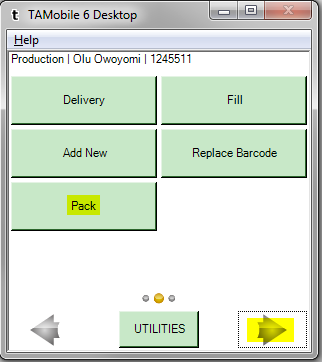
- Click on the Pack button.
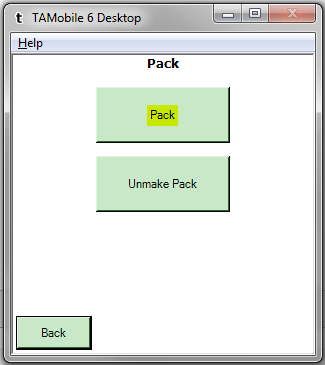
- Scan the Barcode of the pack itself
- Enter The Pack Serial Number (S/N)
- From the drop-down list, select the quantity of assets which will be placed in this pack. Your choices are: 06, 10, 12. We can add to this list at any time.
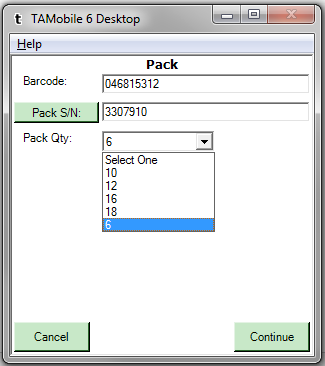
- Click the Continue button.
- From the drop-down lists, select the classification of the pack itself OR tap on the Item# button and enter the Product Code of the pack itself (for example, Argon100-P6) and the classification will automatically populate.
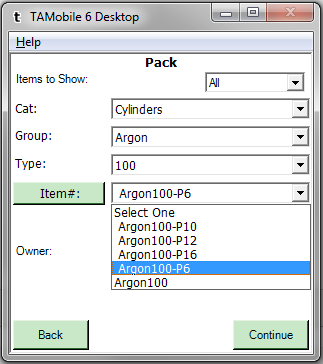
- From the drop-down list, choose the Owner of the pack itself.
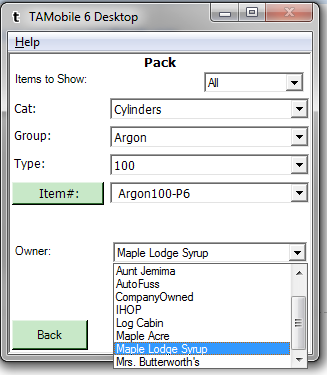
- Click the Continue button.
- Scan (you can also key in the barcodes) the individual assets to be placed into the pack. TrackAbout will only allow you to enter the number of assets into the pack based on your selection, in the previous screen, of how many assets are in the pack. These assets should already have their Add New done prior to putting them into the pack.
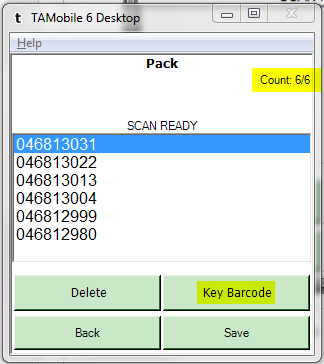
- Click the Save button and sync.


TA Mobile 5
- Make sure that each individual asset that will make the pack is already in TrackAbout (Serialized)
- On the handheld, go to the Internal tab.
- Click on the MAKE PACK button.
- Scan the Barcode of the pack itself
- The Pack # is generally the serial number of the pack itself
- From the drop-down list, select the quantity of assets which will be placed in this pack. Your choices are: 06, 10, 12. We can add to this list at any time.
- Click the Continue button.
- From the drop-down lists, select the classification of the pack itself OR tap on the Item# button and enter the Product Code of the pack itself (for example, 244OX-P6) and the classification will automatically populate.
- From the drop-down list, choose the Owner of the pack itself.
- Click the Continue button.
- Scan the individual assets to be placed into the pack. TrackAbout will only allow you to enter the number of assets into the pack based on your selection, in the previous screen, of how many assets are in the pack. These assets should already have their Add New done prior to putting them into the pack.
- Click the Save button and sync.
After you have synced, you can find the pack itself in the website by searching for the barcode of the pack. However, this will not show you the assets which are in the pack. The assets which are in the pack go into an "Unknown" location, since the pack moves by scanning only the pack's barcode.
Finding the Individual Pack Assets via the Website
- From the TrackAbout website, go to the Asset Search page.
- Click on the plus sign (+) next to "More Asset Search Options." This will expand the search options.
- Enter the Pack # or the serial number of the pack itself into the "Pack#" field. Note: If you do not see this field after expanding the search options, then log out and log back in the website.
- Click on the Search button. The individual assets in the pack will be returned. Note that these assets all have a Pack#.
Unmake a Pack
- On the handheld, go to the Internal tab
- Click on the MAINT button.
- Click on the Unmake Pack button.
- Scan the barcode of the pack itself. This removes the Pack# from the individual assets in the pack.