
WARNING: The TrackAbout MetaWiki has been deprecated and is no longer being updated.
Please visit our new TrackAbout Knowledge Base at https://supportkb.trackabout.com for the most-up-to-date documentation on TrackAbout and TrackAbout Mobile.
Difference between revisions of "My Setup"
Jump to navigation
Jump to search

Jgullickson (talk | contribs) |
|||
| (5 intermediate revisions by 3 users not shown) | |||
| Line 2: | Line 2: | ||
My Setup is where you can control your user account, including changing your password and customizing the Quick Search box. | My Setup is where you can control your user account, including changing your password and customizing the Quick Search box. | ||
| − | + | ===Change Your Password=== | |
| − | + | ||
*Go to the My Password page | *Go to the My Password page | ||
**Type “My Password” in the Jump To box '''or''' use the menu bar and click My Setup > My Password<br /> | **Type “My Password” in the Jump To box '''or''' use the menu bar and click My Setup > My Password<br /> | ||
*Reset your password by typing in your old password, then typing in your new password twice | *Reset your password by typing in your old password, then typing in your new password twice | ||
| + | [[File:password.PNG|400px]] | ||
| − | + | If you are locked out of your account, you can use the '''Forgot My Password''' link on the TrackAbout login page. | |
| − | ===Choose Number of Rows Displayed=== | + | [[File:Forgot my password.png|none|300px]] |
| + | |||
| + | Otherwise, contact your local TrackAbout Administrator to re-establish access to your account. | ||
| + | |||
| + | ===My Preferences (My Prefs)=== | ||
| + | |||
| + | ====Choose Number of Rows Displayed==== | ||
[[File:TA Training P3-2.png|right|alt=Navigation bar on TA Corp webpage.|The Wikipede edits ''[[Login]]''.]] | [[File:TA Training P3-2.png|right|alt=Navigation bar on TA Corp webpage.|The Wikipede edits ''[[Login]]''.]] | ||
On any page that displays a table, you can choose how many rows are displayed at a time. | On any page that displays a table, you can choose how many rows are displayed at a time. | ||
| Line 18: | Line 25: | ||
*Click Save | *Click Save | ||
| − | ===Customize the Quick Search Box=== | + | ====Customize the Quick Search Box==== |
*Go to the My Preferences page | *Go to the My Preferences page | ||
| − | **Type “My Preferences” in the Jump To box | + | **Type “My Preferences” in the Jump To box '''or''' use the menu bar and click My Setup > My Preferences '''or''' click 'My Prefs' on the top navigation pane<br /> |
| − | |||
*Click on the Quick Search tab | *Click on the Quick Search tab | ||
*Check the boxes next to the search functions you want in the Quick Search box | *Check the boxes next to the search functions you want in the Quick Search box | ||
*Choose whether to show the Quick Search box at the top or bottom of the page | *Choose whether to show the Quick Search box at the top or bottom of the page | ||
*Click Save | *Click Save | ||
Latest revision as of 14:34, 29 December 2017
My Setup
My Setup is where you can control your user account, including changing your password and customizing the Quick Search box.
Change Your Password
- Go to the My Password page
- Type “My Password” in the Jump To box or use the menu bar and click My Setup > My Password
- Type “My Password” in the Jump To box or use the menu bar and click My Setup > My Password
- Reset your password by typing in your old password, then typing in your new password twice

If you are locked out of your account, you can use the Forgot My Password link on the TrackAbout login page.

Otherwise, contact your local TrackAbout Administrator to re-establish access to your account.
My Preferences (My Prefs)
Choose Number of Rows Displayed

On any page that displays a table, you can choose how many rows are displayed at a time.
- Go to the My Preferences page
- Type “My Preferences” in the Jump To box or use the menu bar and click My Setup > My Preferences or click 'My Prefs' on the top navigation pane
- Type “My Preferences” in the Jump To box or use the menu bar and click My Setup > My Preferences or click 'My Prefs' on the top navigation pane
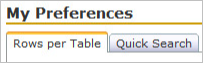
- Make sure the Rows per Table tab is selected
- Enter the number of rows you would like to see at a time in the box
- Click Save
Customize the Quick Search Box
- Go to the My Preferences page
- Type “My Preferences” in the Jump To box or use the menu bar and click My Setup > My Preferences or click 'My Prefs' on the top navigation pane
- Type “My Preferences” in the Jump To box or use the menu bar and click My Setup > My Preferences or click 'My Prefs' on the top navigation pane
- Click on the Quick Search tab
- Check the boxes next to the search functions you want in the Quick Search box
- Choose whether to show the Quick Search box at the top or bottom of the page
- Click Save