
Please visit our new TrackAbout Knowledge Base at https://supportkb.trackabout.com for the most-up-to-date documentation on TrackAbout and TrackAbout Mobile.
Difference between revisions of "Use States"
| Line 184: | Line 184: | ||
[[File:Accepted Use States Example.png|center]] | [[File:Accepted Use States Example.png|center]] | ||
| − | Notice that each action has a list of Use States that are allowed, and a list that are not. The asset's Use State is validated when it is scanned in the action. If the asset is in a valid Use State, it will be added to the action | + | Notice that each action has a list of Use States that are allowed, and a list that are not. The asset's Use State is validated when it is scanned in the action. If the asset is in a valid Use State, it will be added to the action; if not, a warning will be given. |
This feature, along with other business rules are available in the Palletization module. Contact your [[Contact Us|TrackAbout sales representative]] for more information on this module. | This feature, along with other business rules are available in the Palletization module. Contact your [[Contact Us|TrackAbout sales representative]] for more information on this module. | ||
Revision as of 10:35, 7 January 2015
What are Use States?


A Use State describes the status or condition of an asset. Sometimes called a Status, a Use State is assigned to every active, barcoded asset in TrackAbout, based on the last action that happened to that asset. For example, assets that were delivered to a customer would have a use state of "Delivered", while assets that had just been filled or cleaned would have a use state of "Ready for Use".
Available Use States
TrackAbout supports more than 15 different Use States. A list of these is found below. Each Use State can be renamed to suit your asset flow. Please contact TrackAbout Support for details.
| Default Use State Name | Examples of a Customized Name |
|---|---|
| No Change | |
| Not Ready for Use | Empty or Dirty |
| Ready for Use | Full or Clean |
| Delivered | |
| In Use | |
| Reserved | |
| Being Filled | |
| In Transit | |
| Empty, Sorted | |
| Committed for Delivery | |
| Ready for Analysis | |
| Maintenance | |
| In Quarantine | |
| Committed for Delivery - Empty | |
| In Transit - Empty | |
| Condemned | |
| Imported | |
| Sold | |
| Full By Vendor |
How Assets Change Use States
Example of a Typical Asset Cycle

In the example above, you can see that each action results in a Use State that stays on the asset until the next action occurs. Filled goes to Ready for Use, Load Truck goes to Committed for Delivery and so on. Add New and Unload Truck are different though, because they each set a Use State of "No Change" on the assets.
Every action in TrackAbout changes some aspect about the assets scanned in the action. Some of these actions change the state of the asset, but other actions change other aspects of the asset but not its condition. For example, a Locate action changes the location of the asset, but it will not change the state of the asset, because simply moving the asset from one location to another does not change its state. In cases like this, the actions actually set a Use State of No Change, and whenever you view the asset, you will see the last Use State that was set on the asset. So if you unload an asset from a truck that is no longer ready for use, the Use State on the asset will still be Not Ready for Use. In the tables below, you can see the actions that typically change the Use State on an asset, and which do not.
Actions that Typically Set a Use State
| Action | Use State |
|---|---|
| Add New Bulk Tank | Delivered |
| Analysis | Ready for Use |
| Condemn Assets | Condemned |
| Delivery | Delivered |
| Fill | Ready for Use or Ready for Analysis |
| Locate Empty | Not Ready for Use |
| Locate Full | Ready for Use |
| Maintenance In House | The Use State is determined by the maintenance action completed |
| Receive From Vendor | Ready for Use |
| Sell Assets | Sold |
| Sort Assets | Empty, Sorted |
| Sort Trip | Committed for Delivery |
Actions that Typically do not Set a Use State
| Action |
|---|
| Add New |
| Branch Transfer |
| Check Retest Date |
| Customer Audit |
| Edit Asset |
| Load Truck |
| Locate |
| Maintenance At Customer |
| Reclassify |
| Replace Barcode |
| Set Expiration Date |
| Set Ownership |
| Set Serial Number |
| Unload Truck |
Why use Use States?
Used with the reports available in TrackAbout, use states provide another level of insight into your asset inventory by showing how many assets are in each step of the asset life cycle. In some TrackAbout modules, use states are also used to force assets to go through a specific process by allowing only assets with certain use states to be valid for certain actions.
Use States for Reporting
Asset Search
The Asset Search page allows you to search for assets by any criteria associated with the asset. This includes the Use State of the asset. So you could search for assets that have a Use State of Empty and see the details of the assets.
The Current Inventory page allows you to filter your inventory search by Use State. In this case, you could see all the Ready for Use assets in a particular location and how long they have been there.
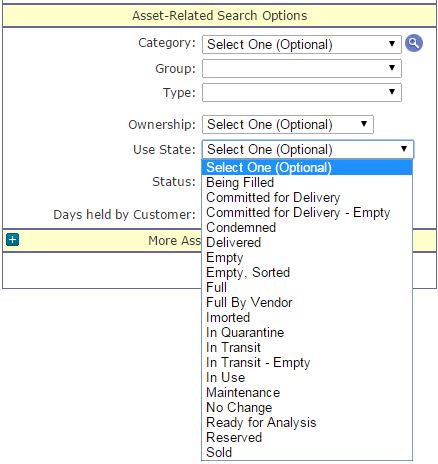
Asset Search
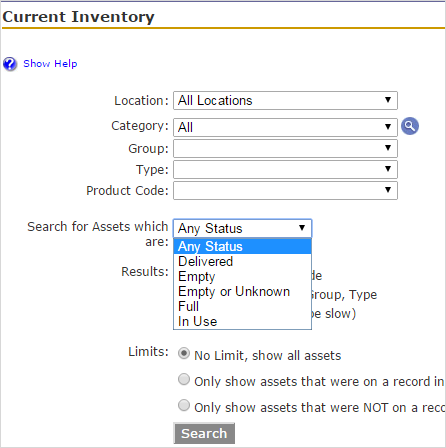
Current Inventory


Use State Validation
Use States can also be used to ensure that an asset follows a certain flow as it moves throughout the plant and back out to the customer. This is done by only allowing assets of certain Use States to be valid for particular actions.

Notice that each action has a list of Use States that are allowed, and a list that are not. The asset's Use State is validated when it is scanned in the action. If the asset is in a valid Use State, it will be added to the action; if not, a warning will be given.
This feature, along with other business rules are available in the Palletization module. Contact your TrackAbout sales representative for more information on this module.