
WARNING: The TrackAbout MetaWiki has been deprecated and is no longer being updated.
Please visit our new TrackAbout Knowledge Base at https://supportkb.trackabout.com for the most-up-to-date documentation on TrackAbout and TrackAbout Mobile.
Difference between revisions of "Navigation"
Jump to navigation
Jump to search

m (→Menu Bar) |
|||
| Line 22: | Line 22: | ||
*Located along the left side of the page, this is where you can navigate to all the other areas of the TrackAbout website | *Located along the left side of the page, this is where you can navigate to all the other areas of the TrackAbout website | ||
*Click on a purple menu item to expand a list of pages in that category: | *Click on a purple menu item to expand a list of pages in that category: | ||
| − | **Management Reports: Contains all types of reports to help you manage your assets, fills, deliveries and more | + | **[[Management Reports]]: Contains all types of reports to help you manage your assets, fills, deliveries and more |
**Lot Reports: Contains reports and search pages for anything having to do with lots | **Lot Reports: Contains reports and search pages for anything having to do with lots | ||
**Regular Maintenance: One of the more important menu items, this category contains all the pages you will need to make sure the data in your TrackAbout system is clean and accurate | **Regular Maintenance: One of the more important menu items, this category contains all the pages you will need to make sure the data in your TrackAbout system is clean and accurate | ||
Revision as of 08:32, 21 August 2013
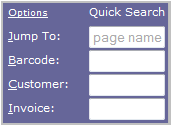
Quick Search Box

- Contains a set of text fields where you can search using different identifiers. The default fields in this section are:
- Jump To: Allows you to search for any page listed in the submenus
- Barcode: Allows you to search for an asset by barcode
- Customer: Allows you to search for a customer by Customer ID
- Invoice: Allows you to search for delivery tickets using an invoice number
- Hint: Typing the first letter of any search box name will automatically put your cursor into it so you can begin typing your search term
- You can change which fields are displayed in the Quick Search Box in the My Preferences page
- Located at the top right section of the TrackAbout website, a group of buttons takes you to frequently used pages:
- My Prefs: Contains pages to change your personal settings
- Help/Wiki: This button drops down a search box that also contains a link to the TrackAbout Wiki where you can find additional support on many topics
- Contact Support: This button drops down a menu containing all the information you will need to contact the TrackAbout support team
- Logout: Logs you out of TrackAbout

Menu Bar
- Located along the left side of the page, this is where you can navigate to all the other areas of the TrackAbout website
- Click on a purple menu item to expand a list of pages in that category:
- Management Reports: Contains all types of reports to help you manage your assets, fills, deliveries and more
- Lot Reports: Contains reports and search pages for anything having to do with lots
- Regular Maintenance: One of the more important menu items, this category contains all the pages you will need to make sure the data in your TrackAbout system is clean and accurate
- Production
- Customers: Contains all things customer related, from pages to add new customers and view customer lists, to reports based on customer activity
- Locations: Manage your company locations with the pages located here
- Search: Contains additional search options for more specific and advanced searches
- Integration: Allows you to import invoice and customer information into TrackAbout
- Create Records: Add records to TrackAbout that would normally be created through TA Mobile
- TrackAbout Config: Gives you control over users, product codes, website access and more
- My Setup: Contains pages to change your personal settings
- Alerts: Manage email alerts on these pages
- Mobile Units: Contains all pages relating to mobile devices, including a mobile unit list and software downloads page