
Please visit our new TrackAbout Knowledge Base at https://supportkb.trackabout.com for the most-up-to-date documentation on TrackAbout and TrackAbout Mobile.
Users
Users
Anyone who will be using TrackAbout, whether they are delivering cylinders, filling them, or accessing the TrackAbout website needs to be set up as a user. This will help you keep track of who made certain deliveries or edits to records on the website.
View Users

- Go to the Internal Users page
- Type “Internal Users” in the Jump To box
- Use the menu bar and click TrackAbout Config > Internal Users
- On this page, you can see a list of all the users that are currently in TrackAbout, along with their basic permissions
- You can also Add, Edit or Delete users from this page
- Users which have been deleted are still present in the database. However, there is not a way to see them from the website.
- Your TrackAbout Support representative can "undelete" users for you.
- If any users have been disabled, you will have a link for Show Disabled Users.
- Users are marked as disabled when all access has been removed from them (website, rugged, and smartphone access.)
Add New Users

Go to the Internal Users page
- Type “Internal Users” in the Jump To box
- Use the menu bar and click TrackAbout Config > Internal Users
- Click on the Add New User link
- Enter User Information
- First Name, Last Name and Location are required
- What kind of access the user should have:
- Website
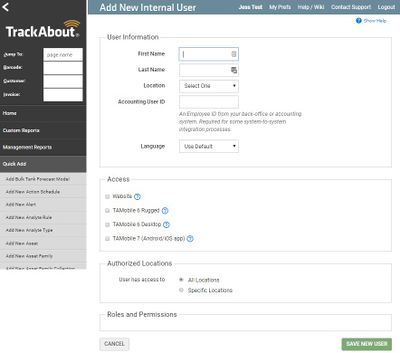
- TAMobile Rugged
- TAMobile Desktop
- TAMobile Android/iOS
- Website
- If the user has an email address:
- Enter the email address in the box
- Leave the Welcome Email box checked
- If the user does not have an email address:
- Enter a Login Username in the box
- Enter and confirm a password for the user
- Specify whether the user has access to all locations or only specific locations
- Note: you must set up specific roles for location-restricted users
- Select what website roles the user should have
- Select what mobile roles the user should have
- Click Save New User.

Disabling a User
Disabling deactivates a user’s account by turning its Access rights off, preventing the user from logging in to or using TrackAbout. We strongly recommend disabling an account instead of deleting it.
Why disable an account instead of outright deleting it? Deleting an account removes it from TrackAbout entirely, which could cause issues down the line. Disabled accounts remain in TrackAbout for historical purposes – they just can’t be used to do anything. Not even login. A disabled account can also easily be re-activated at any time simply by turning its Access rights back on, where deleted accounts need to be re-created from scratch.
To deactivate a user account:
Navigate to TRACKABOUT CONFIG > INTERNAL USERS, or type “Internal Users” into the Jump To box and hit [ENTER].

On the Internal Users page, find the user you want to deactivate and click [EDIT]. This opens the Edit Internal User page.

In the Access section, deselect (uncheck) Website, TAMobile 6 Rugged, TAMobile 6 Desktop, and TAMobile 7.

Click [SAVE CHANGES] at the bottom of the page.

When you return to the Internal Users page, the user account’s entry will no longer be listed. To see it, and any other disabled accounts, click [SHOW DISABLED USERS] at the top of the page.

Bulk Load Users
Bulk Load Users (Jump To: Bulk Load Users) lets you add and make changes to internal users in batches instead of one at a time using a specially formatted Excel workbook. Note that this tool creates users, it is not a tool for editing existing users.

- Go to the Bulk Load Users page:
- Use the Jump To box to type in Bulk Load Users
- Click on TrackAbout Config > Bulk Load Users

- Select “Use hidden UserId to link to existing users in the system” to output a workbook which associates users in the system with their hidden UserID. This is the default selection and the option you’ll want to use for bulk user updates in most cases.
- Select “Use Original User Email and Original User Login (custom info fields) to link to existing users in the system” to output a workbook that associates users in the system with their original email address and username. This workbook includes two additional columns in each worksheet, CustomInfoOriginalLogin and CustomerInfoOriginalEmail. This format is useful for making bulk changes to disabled users. NOTE: To work properly, this option requires specific custom fields be added to your TrackAbout. If you’re interested in this option, contact TrackAbout support for details.
- Step 2 - Download the excel workbook.
- This will give you a formatted template to complete with your user data.
- You must use this workbook for your updates.
- There are special rules and logic built into ensure you’re loading good data.
- Step 3 - Fill in the excel template with your user information
- Step 4 - Click Choose File and navigate to your newly saved file
- Step 5 - Click Import. TrackAbout will analyze and load your data