
Please visit our new TrackAbout Knowledge Base at https://supportkb.trackabout.com for the most-up-to-date documentation on TrackAbout and TrackAbout Mobile.
Remapping and Editing Product Codes
Renaming Product Codes
This involves the changing of the Product Code Name (PCodeName)
Why: Some instances where you might need to change a product code :
- an incorrect product code name was entered originally and it needs to be changed or,
- a recent change in ownership
- A situation where your product code names = asset type names, but after the asset type was renamed, they no longer do, so you want to change it to match, unless the change in Asset Type Name provoked the change of Product Code Name
If you need to rename a product code, please using the Edit Product Code tools on the TrackAbout website to update names. Prior to October 2015, names changes could only be completed by submitting requests to TrackAbout Support. Now, users with appropriate permission can edit Product Code names from the website.

Effects: If you decide to change the Product Code Name for a Product Code Name that was originally set to equal Asset Type Name (PCodeName = AssetType), you will need to change the Asset Type to match the Product Code Name, unless the change in Asset Type provoked the change of Product Code Name.
Remapping Product Codes
Why: Change in Organizational Structure. Mergers, Acquisitions. Errors mapping product codes during implementation.
How: To Remap Individual product codes you can edit individual product codes by
- Navigate to the Product Code Mappings page.
- Search for the Product Code that needs to be remapped
- Click the blue Edit link to the left of the product code.
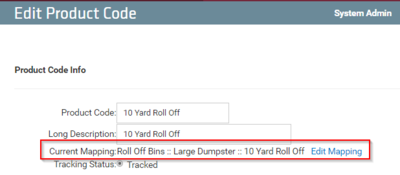
- Look for the Current Mapping field, and then click edit mapping. This will take you to a remapping page.

- Select the correct updated Asset Classification for that product code.

- Click Remap


- If there are a LOT of Product Codes to change, Please contact your TrackAbout Support Representative.
Caution: When remapping product codes, special care has to be taken because remaps can have serious effects. All assets that are assigned to this product code will reflect the new mapping once the product code has been updated. Also, be aware of change to the related Asset Type properties that can be affected include:
- Rental Rates
-
- Standard
- Customer Override
- Agreements
- Bracketed Rates
- Asset Families
- Dynamic Forms
- Reports
-
- Custom Reports
- Standard Reports( AssetType Dependent).