
WARNING: The TrackAbout MetaWiki has been deprecated and is no longer being updated.
Please visit our new TrackAbout Knowledge Base at https://supportkb.trackabout.com for the most-up-to-date documentation on TrackAbout and TrackAbout Mobile.
Tube Trailer Volume Calculation
Jump to navigation
Jump to search
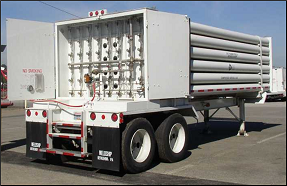

Contact TrackAbout for pricing and availibility of the Tube Trailer Module.
The Problem
- Tube trailers are expensive assets and it is important to know their locations and full/empty status
- Calculating volume for tube trailers using charts can be time consuming and error prone
- Accurately recording the volume of trailers affects billing
- Gas analysis for trailers' contents must be documented
How It Works
- Use a tube trailer volume calculator on the TrackAbout handheld to determine the volume.
- Setup TrackAbout to know the gas in each tube trailer based on it's Asset Type
- Configure a Water Volume as an attribute for each tube trailer. This is done once from the website for each tube trailer
- Enter the current temperature
- Enter the current volume
- TrackAbout takes the above values and calculates the volume
- Record the volume of trailers returned from customers using the "Set Volume" action from the handheld.
- The user enters the barcode, temperature and pressure
- The handheld calculates the volume and shows it to the user to confirm.

- Record the full volume of the trailer after it is filled using the "Fill" action.
- Performan a Analysis on the trailer if needed
- View the current and past volumes for each trailer in the trailer's Asset History on the TrackAbout site
- Report on amount of gas pumped into tube trailers. This calculation determines the amount of gas added to each trailer in each Fill action. To do this it takes each Fill action's final volume and subracts out the previous Set Volume action that set the volume of the trailer when it was returned from the last customer. Said another way, the volume filled is calculated as the 1) volume recorded after filling minus the 2) last volume set on this trailer before the fill action
- Report on amount of gas pumped into tube trailers.
This calculation determines the amount of gas added to each trailer in each Fill action. To do this it takes each Fill action's final volume and subtracts out the lowest volume set on the trailer up to and including the last Fill action. So if a tube trailer has three Set Volume actions performed on it since it's last Fill, the calculation will take the lowest volume of these three Set Volume action and the last Fill action and use the lowest volume found as the starting volume for the Fill calculation. The reason for this is that it can take a long time to fill a tube trailer (sometimes overnight) and it may be useful to record the volume during the middle of the filling process - for instance to know how much gas was used during a shift.
This has a ramification in that if a user makes a mistake and records an incorrectly low volume he cannot 'fix' this buy just recording a new record with a corrected larger volume in a new Set Volume action. The user must instead be sure to delete the incorrect volume record from the handheld or the website.
Supported Gases and Units of Measure
The tube trailer volume calculator currently supports calculating volumes for the following gases:
- Air
- Helium
- Hydrogen
- Nitrogen
- Oxygen
Today the calculations are performed in units of Fahrenheit, Pounds Per Square Inch (PSI) and Standard Cubic Feet (SCF).
Technical Setup (For use by TrackAbout Support)
Client Configurations:
- [105] Is Tracking Asset Volume?: True (This will show a "Set Volume" button under the general tab.)
- [87] Collect Asset Volume - FOT View? (Only needed if FOT will be entering data)
- Show Volume in Asset Details List?: True
Other configurations:
- Setup Custom Asset Info Type (CAI) for Water Volume (CustomAssetId=11)
- Setup Custom Type Info Type (CTI) for Gas Type (CustomTypeId=15)
Setup the clients can then perform:
- Setup Volume Collection Rules from the TrackAbout Config section of the site. The Asset Types for the Tube Trailers must be set to collect the volume using the “Calculate using Temperate/Pressure” method.
- Assign the individual assets a Water Volume. This can be done from the Edit Asset page on the site. It is not typically worth setting up a dynamic form because there are so few tube trailers.