
WARNING: The TrackAbout MetaWiki has been deprecated and is no longer being updated.
Please visit our new TrackAbout Knowledge Base at https://supportkb.trackabout.com for the most-up-to-date documentation on TrackAbout and TrackAbout Mobile.
Maintenance Tracking & Scheduling
Jump to navigation
Jump to search
Overview
The Maintenance Module enables the recording, tracking and reporting of maintenance actions and other procedures used in your business to manage your assets..
The Challenge
- You have assets that require maintenance
- You need to track completed maintenance
- You need to know what preventative maintenance is coming due
- You need to ensure that established procedures or processes have been followed
- You need to know which standard was used in a certain procedure.
TrackAbout Maintenance Module
The Maintenance Module enables the recording, tracking and reporting of maintenance actions and other procedures used in your business to manage your assets..
By enabling the Maintenance module you can:
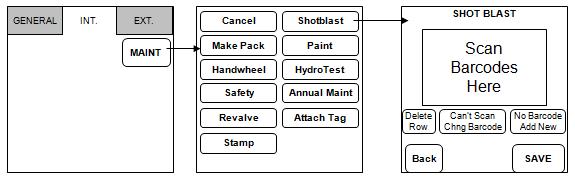
- Create a list of maintenance actions that will be displayed on the handhelds and can then be performed on your assets
- In this example the "Make Pack", "Handwheel", "Safety", "Shotblast" etc buttons are custom maintenance actions

- Report on any completed maintenance
- Maintain an individual asset's maintenance history
When combined with the Dynamic forms module, the Maintenance module can also help you to:
- Establish step-by-step processes to follow for a given maintenance action you need to ensure that established procedures or processes have been followed
- Record extra information for each kind of maintenance work
- Enforce that all information is collected and that values are withing acceptable ranges.
Getting Started:
Track Maintenance Performed
- Create customized maintenance actions
- Record actions performed on assets
- Use Dynamic Forms to collect extra info during maintenance actions
- Report on actions performed
Track Maintenance Coming Due
- Create Asset Families to group your assets for maintenance
- Define Asset Family Collection - This is a name to identify collections - Go to TrackAbout config > Asset Family Collections. If you do not see the Asset Families page, please contact TrackAbout Support.
- Create an Asset Family: Asset Families - Go to TrackAbout config > Asset Families
- Enter a name, description and select a Family collection
- Select if this family require Production lot or not
- Make sure it is active and Save
- Create an Action Schedule for this Asset Family
- If you don't see Action Schedule, make sure Action Schedule is enabled in the page User Access Control edit action schedules --> Can add/edit/delete Action Schedules.
- Create a new action schedule entering name, description and all details such as:
- Action must be performed every X days.
- Report on required actions X days before they are due.
- Select all the Check Boxes actions required for the Action Schedule to be considered complete.
- Create action at the bottom to save.
- Report on maintenance coming due
- Jump to page: Action Schedule: Assets Coming Due
- Select Action schedule
- Sort order
- Check box if you wish to include assets that never received maintenance
- Run the report