
WARNING: The TrackAbout MetaWiki has been deprecated and is no longer being updated.
Please visit our new TrackAbout Knowledge Base at https://supportkb.trackabout.com for the most-up-to-date documentation on TrackAbout and TrackAbout Mobile.
Difference between revisions of "Installing TAMobile"
Jump to navigation
Jump to search
| Line 1: | Line 1: | ||
| + | =Overview= | ||
| + | This page give detailed information on how to download the TAMobile6 software on to your mobile PC or your desktop computer. | ||
| − | + | =Downloading the Software= | |
==Computer/PC Setup== | ==Computer/PC Setup== | ||
#Login to the TrackAbout website and click on the '''Mobile Units''' link on the left-hand navigation menu. | #Login to the TrackAbout website and click on the '''Mobile Units''' link on the left-hand navigation menu. | ||
| Line 31: | Line 33: | ||
<br><br><p>[[File:LogIn.png|center]]</p><br><br> | <br><br><p>[[File:LogIn.png|center]]</p><br><br> | ||
| − | + | =Related Links= | |
===[[New Handheld Computer Setup]]=== | ===[[New Handheld Computer Setup]]=== | ||
| Line 49: | Line 51: | ||
Instructions for installing the Desktop application of TAMobile<br/> | Instructions for installing the Desktop application of TAMobile<br/> | ||
<br/> | <br/> | ||
| + | |||
| + | =Notes= | ||
| + | |||
| + | =Keywords= | ||
| + | TAM6 TAMobile6 Software Download Installing Installation | ||
Revision as of 15:23, 11 May 2017
Overview
This page give detailed information on how to download the TAMobile6 software on to your mobile PC or your desktop computer.
Downloading the Software
Computer/PC Setup
- Login to the TrackAbout website and click on the Mobile Units link on the left-hand navigation menu.
- Click on Software Download as you see below.
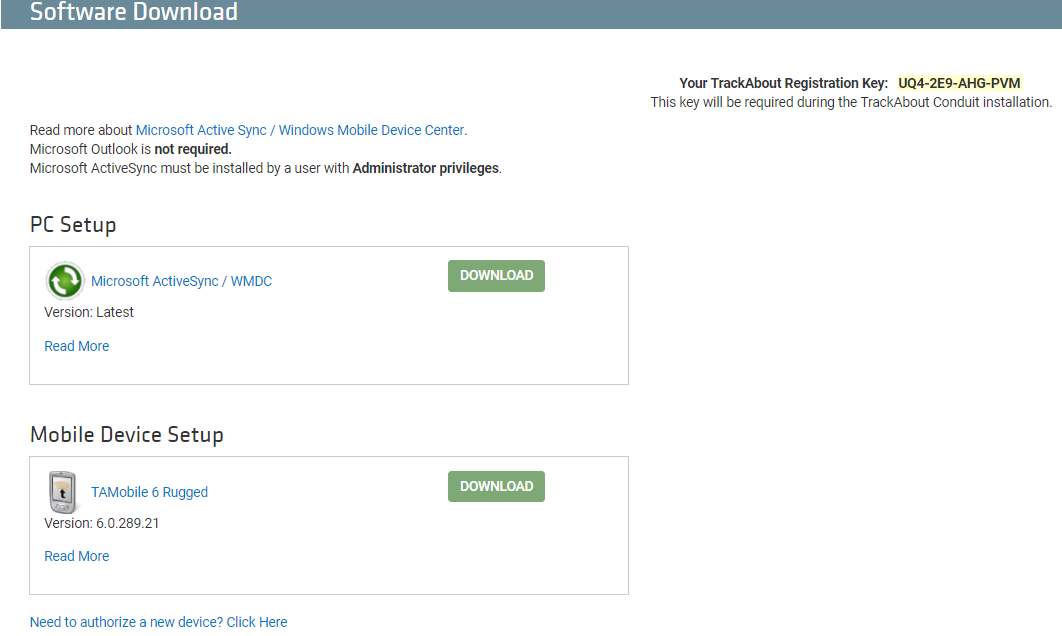
- Click on the Microsoft Active Sync/WMDC Download button and install Microsoft Active Sync or Windows Mobile Device Center.
- Note: Only complete this step if you don't already have one of these programs on your computer.
- If you have Windows 7 or Vista, you will be downloading Windows Mobile Device Center; otherwise, you will be downloading Microsoft Active Sync.
- Connect/cradle your device with your computer.

Mobile Device Setup
- Click on TrackAbout Mobile Download under Mobile Device Setup.
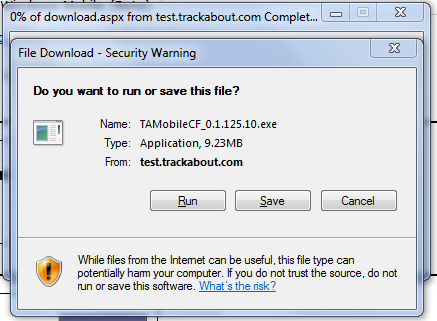
- Once the application has finished downloading, and with your mobile device still cradled, Run the TAMobileCFXXX.exe file.
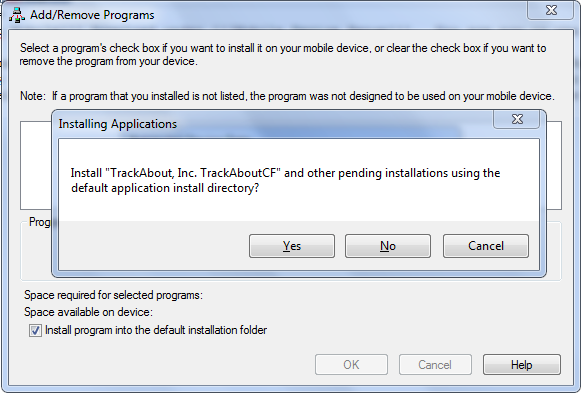
- This will automatically take you to the Installation Setup Wizard. Be sure that you device is cradled and active synched . You will see a screen that looks like the one below, that will ask you to install TrackAbout.CF on the device. Click Yes.
- The application will now download on your device.
- The installation wizard will let you know when you are finished downloading the application.
- Note: It may take a few more seconds for the installation to complete on the actual device.


Running the TrackAbout Application
To begin running the TrackAbout application:
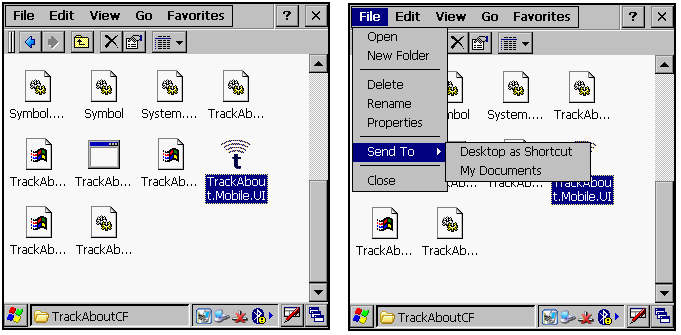
- If you are using a MC3000 series handheld: Double-tap on the My Device Desktop icon, then click on Program Files and open the TrackAboutCF folder. You will see the TrackAbout icon, with the extension .UI. Create a shortcut on your desktop for the program.
- If you are using a MC70 series handheld or MC9000 series handheld: Tap the Start menu, and you should see the TrackAbout icon.
- Tap the TrackAbout icon and you will be prompted to Enter your Registration Key. This key is your specific TrackAbout software registration key, and can be found at the top of the Software Download page under Mobile Units.
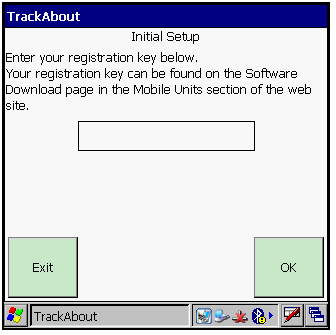
- The key will turn green when you have entered a valid key. Tap OK.
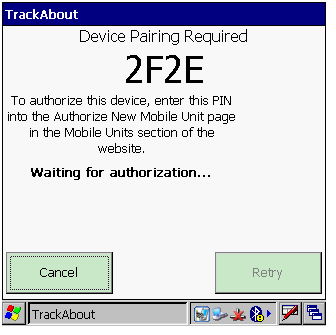
- You will automatically be taken to a screen that looks like the one below. Please visit TAMobile Device Pairing to go through the device authorization steps.


Logging into TrackAbout on your Mobile Device for the First Time
- After you have authorized your device on the website, you will be redirected on the handheld back to the TrackAbout launch screen. Notice that the Log In icon is still grayed out.
- Tap the Sync icon to sync the mobile device to the server. After this sync, the launch screen will look like the one below, with the Log In icon colored blue/shaded (depending on the device you are using).
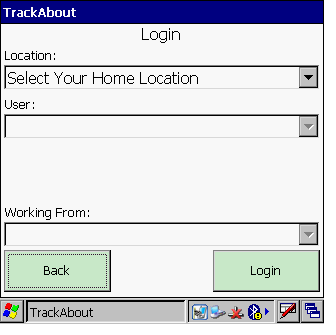
- Tap the Log In button to log into the TrackAbout application.

Related Links
New Handheld Computer Setup
Instructions for installing TAMobile on new handhelds
Authorizing a New Handheld Computer
Instructions for authorizing a new handheld computer to be used with TAMobile
For Compact Framework Only
Downloading and Installing Software
Training video on downloading and installing TAMobile and the TrackAbout Conduit
TAMobile Desktop
Instructions for installing the Desktop application of TAMobile
Notes
Keywords
TAM6 TAMobile6 Software Download Installing Installation