
WARNING: The TrackAbout MetaWiki has been deprecated and is no longer being updated.
Please visit our new TrackAbout Knowledge Base at https://supportkb.trackabout.com for the most-up-to-date documentation on TrackAbout and TrackAbout Mobile.
Difference between revisions of "Users"
Jump to navigation
Jump to search

| Line 4: | Line 4: | ||
=== View Users === | === View Users === | ||
| − | [[File:Users1.png|150px|right | + | [[File:Users1.png|150px|right]] |
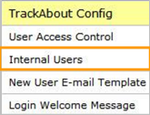
* Go to the Internal Users page | * Go to the Internal Users page | ||
* Type “Internal Users” in the Jump To box | * Type “Internal Users” in the Jump To box | ||
| Line 10: | Line 10: | ||
* On this page, you can see a list of all the users that are currently in TrackAbout, along with their basic permissions | * On this page, you can see a list of all the users that are currently in TrackAbout, along with their basic permissions | ||
* You can also Add, Edit or Delete users from this page<br /> | * You can also Add, Edit or Delete users from this page<br /> | ||
| − | + | ||
=== Add New Users === | === Add New Users === | ||
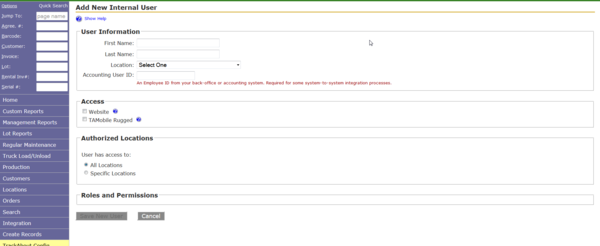
| − | + | [[File:Users2.png|800px|right]] | |
Go to the Internal Users page | Go to the Internal Users page | ||
| Line 23: | Line 23: | ||
* Enter User Information | * Enter User Information | ||
| + | [[File:Users31.png|600px|right]] | ||
* Choose whether or not they have Mobile Unit Access (TAMobile Rugged) | * Choose whether or not they have Mobile Unit Access (TAMobile Rugged) | ||
| Line 50: | Line 51: | ||
* System Admin: has full access | * System Admin: has full access | ||
| − | * Click Save New User | + | * Click Save New User. |
| − | |||
| − | |||
Revision as of 11:36, 20 February 2015
Users
Anyone who will be using TrackAbout, whether they are delivering cylinders, filling them, or accessing the TrackAbout website needs to be set up as a user. This will help you keep track of who made certain deliveries or edits to records on the website.
View Users

- Go to the Internal Users page
- Type “Internal Users” in the Jump To box
- Use the menu bar and click TrackAbout Config > Internal Users
- On this page, you can see a list of all the users that are currently in TrackAbout, along with their basic permissions
- You can also Add, Edit or Delete users from this page
Add New Users

Go to the Internal Users page
- Type “Internal Users” in the Jump To box
- Use the menu bar and click TrackAbout Config > Internal Users
- Click on the Add New User link
- Enter User Information

- Choose whether or not they have Mobile Unit Access (TAMobile Rugged)
- Choose the Mobile Role the user will have access to
- Choose whether or not they have Web Access
- If the user has an email address:
- Enter the email address in the box
- Leave the Welcome Email box checked
- If the user does not have an email address:
- Enter a Login Username in the box
- Enter and confirm a password for the user
- Specify whether the user has access to all locations or only specific locations
- Select what website roles the user should have
- Regular User: has limited access
- System Admin: has full access
- Click Save New User.