
WARNING: The TrackAbout MetaWiki has been deprecated and is no longer being updated.
Please visit our new TrackAbout Knowledge Base at https://supportkb.trackabout.com for the most-up-to-date documentation on TrackAbout and TrackAbout Mobile.
Difference between revisions of "Removing Assets From Customer Balances"
Jump to navigation
Jump to search
Jgullickson (talk | contribs) m |
Jgullickson (talk | contribs) |
||
| (One intermediate revision by the same user not shown) | |||
| Line 9: | Line 9: | ||
== Transfer Assets == | == Transfer Assets == | ||
| − | + | The Transfer Asset page allows you to transfer assets between Locations and Customers. It can be accessed two ways | |
| + | # Through the Transfer Assets page | ||
| + | # Through a customer account. Click the '''Additional Configuration''' tab and then '''Transfer Balance to Another Customer''' | ||
| + | [[File:Transfer Assets From Customer Page.png|300px]] | ||
| − | #Select a FROM Location or Customer | + | The Transfer Assets process includes two screens |
| + | On the first screen: | ||
| + | #Select a FROM Location or Customer [[File:Transfer Assets.png|right|300px]] | ||
#Select a TO Location or Customer | #Select a TO Location or Customer | ||
#Choose a date for which to perform the transfer | #Choose a date for which to perform the transfer | ||
#Choose whether you want to transfer all assets or only selected assets | #Choose whether you want to transfer all assets or only selected assets | ||
#Optional: Enter in some notes to be recorded when performing the transfer | #Optional: Enter in some notes to be recorded when performing the transfer | ||
| − | #Click Continue to either perform the transfer of all assets or continue to the next page where you can select individual asset types to transfer | + | #Click Continue |
| + | One the second screen: | ||
| + | #Choose to either perform the transfer of all assets or continue to the next page where you can select individual asset types to transfer [[File:Transfer Assets 2.png|right|300px]] | ||
Once a Transfer Assets is complete, TWO records will be generated: | Once a Transfer Assets is complete, TWO records will be generated: | ||
| − | #Clear Customer Balance - This record documents the removal of assets from the originating location/customer balance. | + | #Clear Customer Balance - This record documents the removal of assets from the originating location/customer balance. [[File:Transfer Assets Clear Customer Balance.png|right|300px]] |
| − | #Set Customer Balance - This record documents adding assets to the destination location/customer balance. | + | #Set Customer Balance - This record documents adding assets to the destination location/customer balance.[[File:Transfer Assets Set Customer Balance.png|right|300px]] |
| − | To reverse a Transfer Assets process, you must delete BOTH the Clear and Set Customer Balance records. | + | '''To reverse a Transfer Assets process, you must delete BOTH the Clear and Set Customer Balance records.''' |
Latest revision as of 22:27, 18 December 2020
Summary
There are several ways to remove assets from a customer's balance. Choose the method which best reflects where the assets are.
- Transfer assets from the inactive customer to another customer
- Transfer assets from the inactive customer to a branch location
- Mark all of the unique assets as Lost. Lost assets will not show up in your inventory reporting. If a Lost asset gets scanned at some point in the future, it will again become active and all of its history will remain intact.
- Mark all of the unique assets as Retired. Retired assets will not show up in your inventory reporting. If a Retired asset's barcode number gets scanned at some point in the future, TrackAbout will create a new asset with the same barcode as the Retired asset. The retired asset will remain retired, and all of its history will remain with the retired asset.
Transfer Assets
The Transfer Asset page allows you to transfer assets between Locations and Customers. It can be accessed two ways
- Through the Transfer Assets page
- Through a customer account. Click the Additional Configuration tab and then Transfer Balance to Another Customer

The Transfer Assets process includes two screens On the first screen:
- Select a FROM Location or Customer
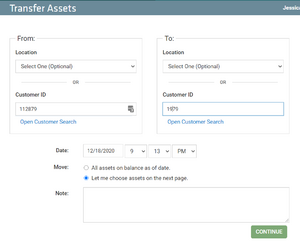
- Select a TO Location or Customer
- Choose a date for which to perform the transfer
- Choose whether you want to transfer all assets or only selected assets
- Optional: Enter in some notes to be recorded when performing the transfer
- Click Continue

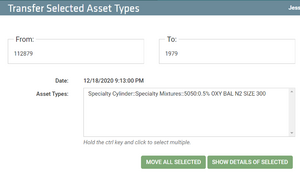
One the second screen:
- Choose to either perform the transfer of all assets or continue to the next page where you can select individual asset types to transfer

Once a Transfer Assets is complete, TWO records will be generated:
- Clear Customer Balance - This record documents the removal of assets from the originating location/customer balance.

- Set Customer Balance - This record documents adding assets to the destination location/customer balance.


To reverse a Transfer Assets process, you must delete BOTH the Clear and Set Customer Balance records.