
Please visit our new TrackAbout Knowledge Base at https://supportkb.trackabout.com for the most-up-to-date documentation on TrackAbout and TrackAbout Mobile.
Difference between revisions of "Warm and Cold boot and Frequent features"
(Created page with '== Windows Mobile == === Microsoft Activesync Problems === :Windows Mobile Devices sync using Microsoft's Activesync software. Many Activesync issues can be resolved with the…') |
|||
| (67 intermediate revisions by 9 users not shown) | |||
| Line 3: | Line 3: | ||
=== Microsoft Activesync Problems === | === Microsoft Activesync Problems === | ||
| − | + | Windows Mobile Devices sync using Microsoft's Activesync software. Many Activesync issues can be resolved with the following steps: | |
| − | + | ||
| − | |||
| − | |||
::*Close ActiveSync on your PC and try again. If you still have problems... | ::*Close ActiveSync on your PC and try again. If you still have problems... | ||
| − | ::*Close down all the programs on your PC, reboot it, and then try again. If you still have problems... | + | ::*Close down all the programs on your PC, reboot it, and then try again. If you still have problems... |
| + | ::*Uninstall ActiveSync and go to the Mobile Units section of the TrackAbout website and reinstall Active Sync using the instructions found on the the Software Downloads page. | ||
| − | ::If you are still having problems, | + | ::If you are still having problems or are uncertain about doing the reinstall, please contact [[Contacting Support|TrackAbout Support]]. |
| − | + | === Device Computer Cold and Warm Boot Procedures === | |
| − | |||
| − | |||
| − | === Device | + | {| class="wikitable" border="1" cellpadding="5" cellspacing="0" |
| + | |- | ||
| + | ! Device | ||
| + | ! Warm Boot <br>Simple reset of the device<br> TrackAbout will not be erased | ||
| + | ! Cold Boot <br>Hard reset (No to factory default)<br> TrackAbout may be erased. Before performing a cold boot, please contact [[Contacting Support|TrackAbout Support.]] | ||
| + | !User Guide | ||
| + | |- | ||
| + | | [[Image:CN70.jpg|thumb|90px|CN70]] | ||
| + | |||
| + | | | ||
| + | *Press the Power button and select Reboot from the menu. | ||
| + | *The computer systematically shuts down, restarts, and goes through the initialization process. | ||
| + | | | ||
| + | *Remove the battery pack from the back of the computer. | ||
| + | *With a stylus, press the Reset button in the battery cavity. | ||
| + | *Insert the battery back into the computer, and immediately press and hold the Power button and Volume Down button (the lower button on the right side). | ||
| + | *Continue to hold the Power button and the Volume Down button down until you are prompted to release them. | ||
| + | *Press the Volume Up button on the right side to start the clean boot. | ||
| + | *Wait for the computer to load files from its ROM. | ||
| + | You can also perform a clean boot using the SmartSystems Console. | ||
| + | *Right-click the 70 Series computer and select Intermec Power Tools > Clean Boot Device. | ||
| + | | | ||
| + | [http://epsfiles.intermec.com/eps_files/eps_man/935-038.pdf CN70 User Guide] | ||
| + | |- | ||
| + | | [[Image: es400_front.png|thumb|60px|ES400]] | ||
| + | |||
| + | | | ||
| + | * Press and hold the Power button for at least five seconds. | ||
| − | ==== | + | * The screen will display a menu, choose the Power Off option. |
| + | | | ||
| + | * Simultaneously press the Power button and the 1 and 9 keys. | ||
| + | | [http://support.symbol.com/support/search.do?cmd=displayKC&docType=kc&externalId=13631001bpdf&sliceId=&dialogID=233608752&stateId=1 ES400 User Guide] | ||
| + | |- | ||
| + | | [[Image:Symbol-MC3000.gif|thumb|65px|MC3000]] | ||
| + | | | ||
| + | * Press the "7" key, the "9" key, and the red "Power" key simultaneously .The mobile computer initializes. <br> | ||
| + | *The MC30XX will open a "MC30XX Demo" application. ''Double'' click the '''exit''' icon (which looks like a door). | ||
| + | *Calibrate the screen. | ||
| + | * If the mobile computer still does not respond, perform a cold boot. | ||
| + | | | ||
| + | *A cold boot also restarts the mobile computer and closes all running programs but also resets the Real-Time-Clock (RTC). | ||
| + | *Note that for Windows Mobile 6.1, Data saved in flash memory (TrackAbout program) or a memory card is not lost. | ||
| + | *Press the "1" key, the "9" key, and the red "Power" key simultaneously | ||
| + | *The mobile computer initializes. | ||
| + | *After the cold boot, the MC30XX will open a "MC30XX Demo" application. Double click the exit icon (which looks like a door). | ||
| + | *Calibrate the screen. | ||
| + | |[http://support.symbol.com/support/search.do?cmd=displayKC&docType=kc&externalId=6889901apdf&sliceId=&dialogID=222578646&stateId=0%200%2030813034 MC 3000 User Guide] | ||
| − | : | + | |- |
| − | + | | [[Image: MC3090.jpg|thumb|65px| MC 3190]] | |
| + | | | ||
| + | * Press and hold the red Power button for approximately 5 seconds. | ||
| + | * As soon as the mobile computer starts to perform a warm boot, release the Power button. | ||
| + | |||
| + | | | ||
| + | ===== Cold Boot ===== | ||
| + | *Press the "1" key, the "9" key, and the red "Power" key simultaneously | ||
| + | *The mobile computer initializes. | ||
| + | *After the cold boot, the MC30XX will open a "MC30XX Demo" application. Double click the exit icon (which looks like a door). | ||
| + | *Calibrate the screen. | ||
| − | + | ===== Clean Boot or Factory reset (Cleaner for MC3190)===== | |
| + | [https://docs.symbol.com/KanisaPlatform/Publishing/790/13088_f.html Clean Boot Instructions] | ||
| − | + | Factory Reset instructions for Motorola devices<br /> | |
| − | : | + | [http://www.mobilitysolutions.cz/eng/faq/mobile-computers/factory-resets Factory Reset]<br /> |
| − | |||
| − | |||
| − | <br> | + | MSP Rapid Deployment file for WIndows 6.5 <br /> |
| + | [http://www.mobilitysolutions.cz/files/MC3190.WM65.FactoryDefault.pdf Windows 6.5]<br /> | ||
| + | MSP Rapid Deployment file for WIndows CE 6 <br /> | ||
| + | [http://www.mobilitysolutions.cz/files/MC3190.CE6.FactoryDefault.pdf Windows 6] | ||
| − | |||
| − | :: | + | |[http://support.symbol.com/support/search.do?cmd=displayKC&docType=kc&externalId=12428902apdf&sliceId=&dialogID=233606365&stateId=1 MC 3190 User Guide] |
| − | + | |- | |
| + | | [[Image: MC65A.jpg|thumb|65px |MC65]] | ||
| + | | | ||
| + | *Press and hold the red Power button for approximately 5 seconds. | ||
| + | *As soon as the mobile computer starts to perform a warm boot, release the Power button. | ||
| + | | | ||
| − | + | ===== Cold Boot ===== | |
| − | + | *On the MC65 a reset is not as drastic as a 'cold boot' on other kinds of handhelds. It is more like a traditional 'warm boot'. This reset will close all running applications and restart the MC65. Data saved in flash memory or a memory card is NOT lost. TrackAbout will still be installed. | |
| − | + | *On a numeric keypad, simultaneously press the red Power button and the “1” and the “9” keys. | |
| − | : | + | * On an alphanumeric keypad, simultaneously press the red Power button and the “W” and the “C” keys |
| − | + | ===== Clean boot/ Factory Reset ===== | |
| − | + | * [http://support.symbol.com/support/search.do?cmd=displayKC&docType=kc&externalId=13862&sliceId=&dialogID=563156002&stateId=1%200%20563142806| Cleanboot and Clean Application Files for MC65] | |
| − | + | | | |
| + | *[http://www.swfoods.com/uploads/visual_edit/mc65-integrator-guide.pdf MC65 Integrator Guide] | ||
| + | *[http://support.symbol.com/support/search.do?cmd=displayKC&docType=kc&externalId=13376901bpdf&sliceId=&dialogID=233602913&stateId=1 MC 65 User Guide] | ||
| + | |- | ||
| + | | [[Image: MC75A.jpg|thumb|65px |MC75]] | ||
| + | | | ||
| + | * Hold down the Power button for approximately five seconds. | ||
| + | *As soon as the MC75 starts to perform a warm boot, release the Power button. | ||
| + | | | ||
| + | * Simultaneously press the Power button and the 1 and 9 keys. | ||
| − | ==== | + | ===== Clean boot/ Factory Reset ===== |
| + | * [http://support.symbol.com/support/search.do?cmd=displayKC&docType=kc&externalId=12319&sliceId=&dialogID=563152969&stateId=1%200%20563142793| Cleanboot and Clean Application Files for MC75] | ||
| − | : | + | |[http://support.symbol.com/support/search.do?cmd=displayKC&docType=kc&externalId=13350301apdf&sliceId=&dialogID=222582024&stateId=0%200%2030813193 MC 75 User Guide] |
| − | : | + | |- |
| + | | [[Image: MC9000.jpg|thumb|65px | MC9000]] | ||
| + | | | ||
| + | *Hold down the Power button for approximately five seconds. | ||
| + | *As soon as the mobile computer starts to perform a warm boot, release the Power button. | ||
| + | | | ||
| + | *Press the primary battery release on the mobile computer to partially eject the battery from the mobile computer. | ||
| + | *While the battery is partially released, simultaneously press and release the handle trigger and the Power button. | ||
| + | *Push the battery to fully re-insert it in the mobile computer. One audible click can be heard as the battery is fully inserted. | ||
| + | *The mobile computer initializes. | ||
| + | *Calibrate the screen. | ||
| + | |[http://support.symbol.com/support/search.do?cmd=displayKC&docType=kc&externalId=13350301apdf&sliceId=&dialogID=222582024&stateId=0%200%2030813193 MC 9000 User Guide] | ||
| + | |- | ||
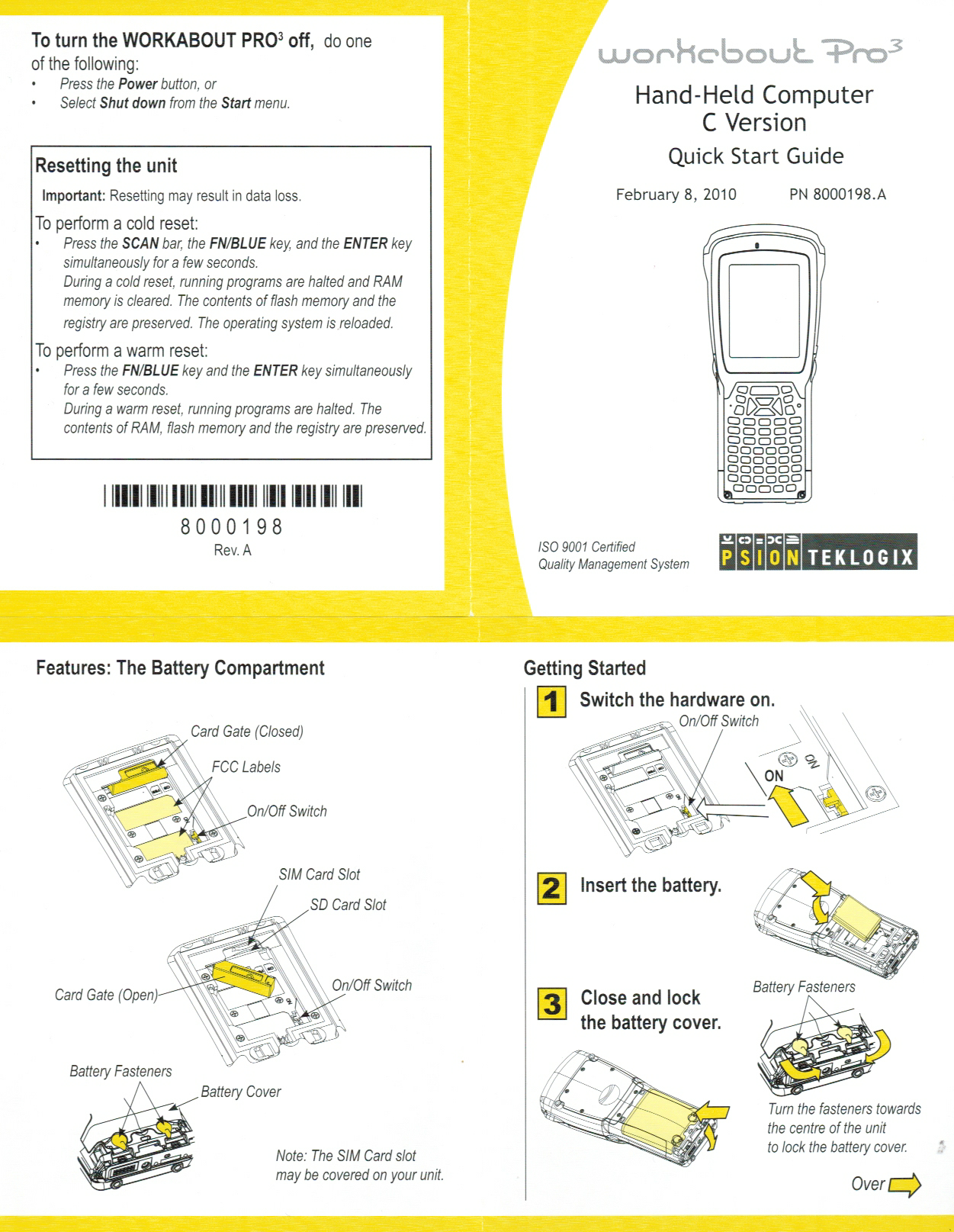
| + | | [[Image: Workabout.png |65px |thumb| WorkaboutPro ]] | ||
| + | | | ||
| + | '''WARM BOOT''' | ||
| + | * Press and hold down the [FN/BLUE] key and the [ENTER] key simultaneously for a minimum of six seconds. | ||
| + | | | ||
| + | '''COLD BOOT''' | ||
| + | *Press and hold down the [FN/BLUE] [FN/ORANGE] and [ENTER] keys simultaneously for a minimum of six seconds. | ||
| + | *WAP3: Press the [SCAN] bar, the [FN/Blue] key and the [ENTER] key for a few seconds. In windows 6.1, memory is maintained in Flash memory | ||
| + | '''Clean Boot''' or factory reset | ||
| + | For WAP 3 with flash memory, a Cold boot doesn't wipe registry not file system, you then need a Clean boot to factory reset: | ||
| + | * Press and hold Left Scan (or Middle Scan), [BLUE] and [ENTER] for six seconds to enter Boost mode. | ||
| + | *At Boot menu, press [.], (dot) then type either "clean" (alpha keypad) or | ||
| + | "25326" (numeric keypad), followed by [ENTER]. Note: You do not see what you type. | ||
| + | * The factory reset will follow | ||
| + | *Next step is to install the '''Add-On's''' | ||
| + | Found on bottom of page: http://community.psion.com/support/f/17/p/11594/39380.aspx#39380 | ||
| − | : | + | '''Add On's required after clean boot''' |
| − | ::* | + | Download the Add-On CAB file from SVN to the device and run it. Once loaded, the device will reboot. |
| + | After reboot, you should be able to scan (barcode scanner) and also remap the buttons if needed for the RFID reader | ||
| + | *Cab file location: SVN\Support\Tools\Hardware\WorkAboutPro 3\WAP Add on download CAB | ||
| + | *References: http://community.psion.com/support/f/17/p/10312/34553.aspx | ||
| + | *File was obtained from Psion | ||
| + | |[http://www.handheld.fi/Content/Media/Downloads/WAPG2WM68100144A.pdf Workabout Pro User Guide]<br> | ||
| + | [[media:Workabout_Pro_3_Quick_Start_Guide_Feb_2010_(1of2).png| WAP3 Quick Startup Guide page 1]] | ||
| + | [[media:Workabout_Pro_3_Quick_Start_Guide_Feb_2010_(2of2).png| WAP3 Quick Startup Guide page 2]] | ||
| + | |- | ||
| + | |} | ||
| − | ==== | + | === Frequent Features - Menu === |
| + | ==== Windows CE 5.0==== | ||
| + | *System Settings and version: Start - Settings - Control Panel - System (general tab) | ||
| + | *Set Date and Time: Start - Settings - Control, Panel - Date/Time (Allows to automatically adjust for DST) | ||
| + | *Set Date and Time: Start - Settings - Control, Panel - Date/Time (Allows to automatically adjust for DST) | ||
| + | *Name in the Device: Start - Settings - Control Panel - System - Device Name tab - Enter the Device name (Enter a meaningful name for your organization)and that it matches the label affixed to the handheld) | ||
| + | *Locking the Device: Start - Settings - Control Panel - Password | ||
| − | :: | + | ==== Windows Mobile 6.1==== |
| − | : | + | *System Settings and version: Start - Settings - System - About - Version |
| − | + | *Set Date and Time: Start - Settings - System - Clock & Alarms - | |
| + | *Name in the Device: Start - Settings - System - About - Device ID - Enter the Device name (Enter a meaningful name for your organization). Make sure it matches the label affixed to the handheld | ||
| + | *Locking the Device: Start - Settings - Personal Tab - Lock Check the box ands select password and duration for device to lock. | ||
| − | :: | + | ==== Windows Mobile 6.5==== |
| + | *System Settings and version: Start - Settings - System - About - Version | ||
| + | *Set Date and Time: Start - Settings - Clock & Alarms - | ||
| + | *Name in the Device: Start - Settings - System - About - Device ID - Enter the Device name (Enter a meaningful name for your organization). Make sure it matches the label affixed to the handheld | ||
| + | *Locking the Device: Start - Settings - Personal Tab - Lock Check the box ands select password and duration for device to lock. | ||
| − | : | + | === Free PDF reader for Win. Mobile === |
| − | + | http://pocketxpdf.sourceforge.net/ | |
| − | == | + | ==Windows CE 6.0 Devices== |
| + | If the mobile computer stops responding to input, reset it. There are two reset functions, warm boot and cold boot. | ||
| + | A warm boot restarts the mobile computer by closing all running programs. All data that is not saved is lost. | ||
| + | A cold boot also restarts the mobile computer, but erases all stored records and entries from RAM. In addition it returns formats, preferences and other settings to the factory default settings. | ||
| + | Perform a warm boot first. If the mobile computer still does not respond, perform a cold boot. | ||
| − | + | === Motorola MC3100 Warm Boot & Cold Boot === | |
| + | ====Performing a Warm Boot==== | ||
| + | To perform a warm boot: | ||
| + | # Press the '''Power button for five seconds.''' | ||
| + | # As the mobile computer initializes MC31XX Sample Applications window appears. | ||
| − | + | ====Performing a Cold Boot==== | |
| + | A cold boot restarts the mobile computer and erases all user stored records and entries from RAM. Never perform | ||
| + | a cold boot unless a warm boot does not solve the problem. | ||
| + | To perform a cold boot: | ||
| − | + | # '''Simultaneously press and then release the 1, 9 and Power keys'''. Do not hold down any other keys or buttons. As the mobile computer initializes, the splash window, appears for about a minute. | |
| + | # Calibrate the touch screen. | ||
| − | + | == Denso BHT 710 == | |
| + | ===Cold Boot=== | ||
| + | To cold boot, press the Power Key while pressing the reset button on the back with the stylus | ||
| − | + | === User Manual BHT 700 series=== | |
| + | http://www.auto-idsystems.com/data_docs/BHT700Qseries_UsersManual_E3.pdf | ||
== Palm OS == | == Palm OS == | ||
| Line 123: | Line 255: | ||
:::*Press the reset button with your stylus until you feel a slight click. The reset button is a small black rubber pad to the right of the battery. | :::*Press the reset button with your stylus until you feel a slight click. The reset button is a small black rubber pad to the right of the battery. | ||
:::*Replace battery cover. | :::*Replace battery cover. | ||
| − | ::Cold Boot ("hard" reset to factory default settings, TrackAbout will be erased) | + | ::*Cold Boot ("hard" reset to factory default settings, TrackAbout will be erased) |
:::*Remove battery cover. | :::*Remove battery cover. | ||
| − | :::*Press the reset button with your stylus until you feel a slight click. The reset button is a small black rubber pad to the right of the battery. | + | :::*Press and hold Power button. Hold for 5 seconds. |
| − | + | :::*Press the reset button with your stylus until you feel a slight click. The reset button is a small black rubber pad to the right of the battery. | |
:::*Release Power button. | :::*Release Power button. | ||
:::*Release Reset button. | :::*Release Reset button. | ||
:::*Replace battery cover. | :::*Replace battery cover. | ||
:::*Verify that the user is prompted to re-align the screen, etc. | :::*Verify that the user is prompted to re-align the screen, etc. | ||
| + | |||
| + | === Palm Memory Identification === | ||
| + | Most devices are 8 or 16 MB. To find out your Palm device, from the main application screen, select Menu - App and Info. Make sure the device in the drop drown is HANDHELD. It will show free space xx of XXX total flash memory. | ||
| + | |||
| + | === Additional Handheld Troubleshooting Information === | ||
| + | [[Troubleshooting]] | ||
Latest revision as of 18:23, 3 March 2015
Windows Mobile
Microsoft Activesync Problems
Windows Mobile Devices sync using Microsoft's Activesync software. Many Activesync issues can be resolved with the following steps:
- Close ActiveSync on your PC and try again. If you still have problems...
- Close down all the programs on your PC, reboot it, and then try again. If you still have problems...
- Uninstall ActiveSync and go to the Mobile Units section of the TrackAbout website and reinstall Active Sync using the instructions found on the the Software Downloads page.
- If you are still having problems or are uncertain about doing the reinstall, please contact TrackAbout Support.
Device Computer Cold and Warm Boot Procedures
| Device | Warm Boot Simple reset of the device TrackAbout will not be erased |
Cold Boot Hard reset (No to factory default) TrackAbout may be erased. Before performing a cold boot, please contact TrackAbout Support. |
User Guide |
|---|---|---|---|
|
You can also perform a clean boot using the SmartSystems Console.
|
||
|
|
ES400 User Guide | |
|
|
MC 3000 User Guide | |
|
Cold Boot
Clean Boot or Factory reset (Cleaner for MC3190)Factory Reset instructions for Motorola devices MSP Rapid Deployment file for WIndows 6.5
|
MC 3190 User Guide | |
|
Cold Boot
Clean boot/ Factory Reset |
||
|
Clean boot/ Factory Reset |
MC 75 User Guide | |
|
|
MC 9000 User Guide | |
|
WARM BOOT
|
COLD BOOT
Clean Boot or factory reset For WAP 3 with flash memory, a Cold boot doesn't wipe registry not file system, you then need a Clean boot to factory reset:
"25326" (numeric keypad), followed by [ENTER]. Note: You do not see what you type.
Found on bottom of page: http://community.psion.com/support/f/17/p/11594/39380.aspx#39380 Add On's required after clean boot Download the Add-On CAB file from SVN to the device and run it. Once loaded, the device will reboot. After reboot, you should be able to scan (barcode scanner) and also remap the buttons if needed for the RFID reader
|
Workabout Pro User Guide WAP3 Quick Startup Guide page 1 WAP3 Quick Startup Guide page 2 |


Frequent Features - Menu
Windows CE 5.0
- System Settings and version: Start - Settings - Control Panel - System (general tab)
- Set Date and Time: Start - Settings - Control, Panel - Date/Time (Allows to automatically adjust for DST)
- Set Date and Time: Start - Settings - Control, Panel - Date/Time (Allows to automatically adjust for DST)
- Name in the Device: Start - Settings - Control Panel - System - Device Name tab - Enter the Device name (Enter a meaningful name for your organization)and that it matches the label affixed to the handheld)
- Locking the Device: Start - Settings - Control Panel - Password
Windows Mobile 6.1
- System Settings and version: Start - Settings - System - About - Version
- Set Date and Time: Start - Settings - System - Clock & Alarms -
- Name in the Device: Start - Settings - System - About - Device ID - Enter the Device name (Enter a meaningful name for your organization). Make sure it matches the label affixed to the handheld
- Locking the Device: Start - Settings - Personal Tab - Lock Check the box ands select password and duration for device to lock.
Windows Mobile 6.5
- System Settings and version: Start - Settings - System - About - Version
- Set Date and Time: Start - Settings - Clock & Alarms -
- Name in the Device: Start - Settings - System - About - Device ID - Enter the Device name (Enter a meaningful name for your organization). Make sure it matches the label affixed to the handheld
- Locking the Device: Start - Settings - Personal Tab - Lock Check the box ands select password and duration for device to lock.
Free PDF reader for Win. Mobile
http://pocketxpdf.sourceforge.net/
Windows CE 6.0 Devices
If the mobile computer stops responding to input, reset it. There are two reset functions, warm boot and cold boot. A warm boot restarts the mobile computer by closing all running programs. All data that is not saved is lost. A cold boot also restarts the mobile computer, but erases all stored records and entries from RAM. In addition it returns formats, preferences and other settings to the factory default settings. Perform a warm boot first. If the mobile computer still does not respond, perform a cold boot.
Motorola MC3100 Warm Boot & Cold Boot
Performing a Warm Boot
To perform a warm boot:
- Press the Power button for five seconds.
- As the mobile computer initializes MC31XX Sample Applications window appears.
Performing a Cold Boot
A cold boot restarts the mobile computer and erases all user stored records and entries from RAM. Never perform a cold boot unless a warm boot does not solve the problem. To perform a cold boot:
- Simultaneously press and then release the 1, 9 and Power keys. Do not hold down any other keys or buttons. As the mobile computer initializes, the splash window, appears for about a minute.
- Calibrate the touch screen.
Denso BHT 710
Cold Boot
To cold boot, press the Power Key while pressing the reset button on the back with the stylus
User Manual BHT 700 series
http://www.auto-idsystems.com/data_docs/BHT700Qseries_UsersManual_E3.pdf
Palm OS


Palm HotSync Issues
- If you are experiencing problems synchronizing your Device device to the TrackAbout website, please follow the steps listed below:
- Insert your TrackAbout Device into the cradle and check for illuminated lights in the lower left hand corner of the cradle. The Device unit does not need to be turned on.
- If the red or green light is illuminated, try to sync your Device by pushing the sync button on the cradle.
- If no lights are illuminated, check the following. Make sure the Device unit is firmly and fully inserted into the cradle. Check to make sure there is power to the cradle, power supply and wall outlet. Try inserting a different Device into the cradle.
- Push the sync button on the cradle and listen for the sync tones.
- You should next see a "box" for the Palm HotSync manager program on your computer screen. Palm's HotSync manager is the program that allows your PC and your Palm Device computer to "talk" to each other.
- If the Palm HotSync "box" does not appear, check that the HotSync manager application is running. You'll see an icon that looks like this in the system tray (bottom right of your computer's monitor):

- If HotSync Manager is not running, navigate to Start>All Programs>Palm Desktop and click on the HotSync manager icon
- if HotSync Manager is running, right click on the HotSync manager icon in your system tray, and insure that there is a check mark next to "Local Serial"
- If the Palm HotSync "box" does not appear, check that the HotSync manager application is running. You'll see an icon that looks like this in the system tray (bottom right of your computer's monitor):

.png)
- If the Palm HotSync box appears, you should next see the TrackAbout Conduit. The TrackAbout conduit allows your computer to send the data on your Palm Device computer to the TrackAbout website.
- If the TrackAbout conduit does not appear at all, login to the TrackAbout website, and reinstall the conduit.
Device Cold and Warm Boot Procedures
Symbol 1500's
- Warm Boot (simple reset of the device, TrackAbout will not be erased)
- Using a paperclip, pin, or thumbtack push the reset button on the back of the unit.
- Cold Boot ("hard" reset to factory default settings, TrackAbout will be erased)
- Hold down the power button
- While holding down the power button, press the reset button on the back of the device.
- Should get message warning erasing data Press the upper half of the scroll button.
- Warm Boot (simple reset of the device, TrackAbout will not be erased)
Symbol 1800's
- Warm Boot (simple reset of the device, TrackAbout will not be erased)
- Remove battery cover.
- Press the reset button with your stylus until you feel a slight click. The reset button is a small black rubber pad to the right of the battery.
- Replace battery cover.
- Cold Boot ("hard" reset to factory default settings, TrackAbout will be erased)
- Remove battery cover.
- Press and hold Power button. Hold for 5 seconds.
- Press the reset button with your stylus until you feel a slight click. The reset button is a small black rubber pad to the right of the battery.
- Release Power button.
- Release Reset button.
- Replace battery cover.
- Verify that the user is prompted to re-align the screen, etc.
- Warm Boot (simple reset of the device, TrackAbout will not be erased)
Palm Memory Identification
Most devices are 8 or 16 MB. To find out your Palm device, from the main application screen, select Menu - App and Info. Make sure the device in the drop drown is HANDHELD. It will show free space xx of XXX total flash memory.