|
|
| (92 intermediate revisions by 7 users not shown) |
| Line 1: |
Line 1: |
| | + | {{TrackAbout Module |
| | + | |Module Description=TrackAbout Rental automates and streamlines the management of rented or leased portable assets. |
| | + | |Supported In=TAMobile 5, TAMobile 6 Rugged, TAMobile Android, TAMobile iOS, TAMobile 6 Desktop |
| | + | |Business Process=Asset Management |
| | + | }} |
| | [[Module_Overviews|<< Back to Module Overviews]] | | [[Module_Overviews|<< Back to Module Overviews]] |
| | | | |
| − | ==Introduction== | + | ==Overview== |
| − | TrackAbout’s Rental Module brings new ease of use in managing the complex agreements between packaged gas distributors and their customers. With TrackAbout Rental, you can easily configure customer leases, rental rates by size or categories of customers, and manage prices globally across all your customers all through an intuitive, web-based interface.
| + | TrackAbout's Rental Module brings new ease of use in managing the complex agreements between packaged gas distributors and their customers. With TrackAbout Rental, you can easily configure customer leases, rental rates by size or categories of customers, and manage prices globally across all your customers all through an intuitive, web-based interface. |
| | | | |
| − | ==Conversion==
| + | Contract TrackAbout Support or your TrackAbout Sales representative to get started. |
| − | The first part of your rental project will likely be converting information from your current rental system into TrackAbout.
| |
| | | | |
| − | Information on conversion from another rental system to TrackAbout can be found here: [[Rental Conversion]]
| |
| | | | |
| − | ==Equipment Rental==
| |
| − | There are many special features for 'Equipment Rental'.
| |
| | | | |
| − | See the description of [[Equipment Rental]] for more information.
| + | == How Does it Work == |
| | | | |
| − | ==Rental Classes==
| + | To get set up with the Trackabout Rental module, you will work closely with Trackabout Support and Development personnel. There is quite a lot of preparation and testing that will go into making the Rental module just what you need it to be. |
| − | A Rental Class is a grouping of Asset Types. The Standard Rate Table is organized by Rental Classes, which determine the way Asset Types are normally rented. Rental Classes are thus at the core of how rent is calculated.
| |
| | | | |
| − | Rental Classes
| + | Below, you will find information about the different features of the Rental Module, as well as extensive information about how to set up and test the Module for your use. |
| − | * There is no limit to the number of Rental Classes
| |
| − | * Each Rental Class may contain many Asset Types
| |
| − | * Each Asset Type may belong to only one Rental Class
| |
| | | | |
| − | For example, an "Industrial, Large" Rental Class could be created for setting rates and rental methods on all 200- and 300-size industrial cylinders.
| + | ===Conversion=== |
| | + | The first part of your rental project will likely be converting information from your current rental system into TrackAbout. |
| | | | |
| − | [[File:RentalClass.jpg|border]] | + | Information on conversion from another rental system to TrackAbout can be found here: [[Rental Conversion]] |
| | | | |
| − | Each Rental Class is assigned to a Rental Billing Period Type. This allows for different Rental Classes to be billed on different cycles. For example, customers may be billed once a month for cylinder rental, but more frequently for equipment rental. However, even if different Rental Classes are billed on the same cycle, assigning them to different Rental Billing Period Types allows their rental bills to be run separately. Contact TrackAbout to setup the different Rental Billing Period Types.
| + | ===Rental Classes=== |
| | + | A Rental Class is a grouping of Asset Types. The Standard Rate Table is organized by Rental Classes, which determine the way Asset Types are normally rented. Rental Classes are thus at the core of how rent is calculated. |
| | | | |
| − | Every Rental Class has an Accounting Code which gets reported back to the business/accounting system. This is typically the general ledger (GL) or charge code from the accounting system.
| + | Click here for more information on [[Rental Classes]] |
| − | Each Rental Class is assigned to a Tax Category to determine how it is taxed. Contact TrackAbout to setup the different Tax Categories.
| |
| | | | |
| − | Rental Classes can also be used for displaying a less-detailed Rental Bill. There is an option to configure TrackAbout such that the Rental Bill displays one line for every Rental Class, as opposed to displaying one line for every asset Type. | + | ===Rental Rates and Methods=== |
| | + | Rental Methods and Rental Rates can be set at a few different levels in the TrackAbout Rental Module. This is done to give maximum flexibility in setting up the rental system while making it as easy as possible to manage. <br> |
| | | | |
| − | ==Rate Table Levels==
| + | More information about Rental Methods and Rental Rates can be viewed here: [[Rental Rates and Methods]] |
| − | Rental Methods and Rental Rates can be set at a few different levels in the TrackAbout Rental Module. This is done to give maximum flexibility in setting up the rental system while making it as easy as possible to manage. | |
| − | ===Standard Rates===
| |
| − | Standard Rates are intended to be the List Prices for rental. This is typically the most that any customer would be charged for rental. By default, new customers will fall into the Standard-Rates-table rates until they are moved to a Rate Bracket or they have Customer-Specific Rates added for them.
| |
| − | Standard Rates:
| |
| − | * Are the default rates for all customers. Any rates not overridden in Bracketed or Customer Rental Rate Tables will default to the values in the Standard Rental Rate Table
| |
| − | * Are set at the '''Rental Class level'''. Rates may not be set on asset Types.
| |
| − | * Are configured from the Rental Menu
| |
| − | * Do not expire
| |
| − | * There can be only one Standard Rate table
| |
| − | [[File:StandardRates.jpg|border]]
| |
| | | | |
| − | ===Rate Brackets=== | + | ===Rental Calculations=== |
| − | Rate brackets allow for the creation of different rental rate levels for customers. Multiple customers can be assigned to a single bracket. It is can be easier to manage a few rate brackets than to manage a special price for every customer that needs something other than the standard price. You might create a rate bracket for customers of a certain size or industry or for new customers. For instance, a rate bracket could be created for customers with 50 to 100 rental assets on site. Similarly, a rate bracket could be created for a customer segment, such as small retailers. Once a rate bracket is created you can then assign customers to this bracket from the Rental Rates section of the Customer Detail View screen.
| + | Rental is calculated at the Asset Type level. The rates may be set at the Rental Class level, but all calculations inside TrackAbout are done at the Asset Type Level and then they are rolled up to the Rental Class level as needed. |
| | | | |
| − | Rate Brackets:
| + | There are three categories of [[Rental_Rates_and_Methods|Rental Rates]] in TrackAbout: Standard Rate, Bracketed Rate and Customer Specific rate. When multiple rates are assigned, TrackAbout uses the following sequence to determine the correct rate to calculate rental: |
| − | * Group similar customers under the same non-standard set of Rental Rates
| + | :::[[Image:RateHeirarchy.png|border]] |
| − | * Are set at the '''Rental Class''' level. Rates may not be set on Asset Types
| |
| − | * Are configured from the Rental Menu
| |
| − | * There is no limit to the number of Rate Brackets, there can be many or none
| |
| − | * A customer may be assigned to only one Rate Bracket
| |
| − | * Customers are not automatically assigned to a rate bracket by TrackAbout
| |
| − | * For departments (ie ship-tos or child accounts), the Rate bracket is always inherited from the parent - even when the child is set as Billed Separately.
| |
| | | | |
| − | | + | Typicaly, starting from the top, Standard Rates are the highest rate charged for rental. As more specific rates are applied, the rental charged is usualy discounted. |
| − | [[File:RateBrackets.jpg|border]]
| |
| − | :*The Edit Rate Bracket screen functions just like the Edit Standard Rates screen
| |
| − | | |
| − | ===Customer-Specific Rates===
| |
| − | Customer-Specific Rates are set for the individual customer and are used when a customer needs special pricing outside of the pricing specified in the Rate Brackets. This is commonly thought of as 'contract pricing'. A customer may be in a bracket and also use Customer-Specific Rates. Unlike Standard Rates and Rate Brackets, Customer-Specific Rates may be set on either the Rental Class or Asset Type level. There can be only one Customer-Specific Rate table for each customer. If a customer has departments, these departments automatically use the Customer-Specific Rates of their parent. However, Customer-Specific Rates may be set on the individual departments independently of their main parent account should there be a need to charge them a different rate than the parent customer.
| |
| − | | |
| − | Customer-Specific Rates:
| |
| − | * Are special rates for individual customers
| |
| − | * Are set at the '''Rental Class or Asset Type''' level
| |
| − | * Take precedence over the Standard Rental Rate table, and over any Rate Brackets assigned to the customer
| |
| − | * Are configured from the Customer Detail screen
| |
| − | * Are effective immediately
| |
| − | * Customer Specific Rates and Rate Brackets can be assigned from the Rental Rates section of the Customer Detail View screen
| |
| − | :[[File:CustDetailView_RentalRates.jpg|border]]
| |
| − | | |
| − | Clicking on Create New or Edit Details for Customer-Specific Rates opens a screen which has a "Review Rates On" date field. This is the date by which the rates should be checked. This is not an expiration date. If the date passes the rates will continue to be in effect. This "Review Rates On" date is the date by which someone should review the rental rates. The idea is that periodically the rates should then either have their ‘"Review Rates On" date extended or these customer-specific rates should be removed. TrackAbout is currently developing a report which will list all the Customer-Specific Rates which are set to be reviewed within a selected time frame.
| |
| − | | |
| − | ===Audit Trail of Rate Changes===
| |
| − | Audit Trails track changes at each different level of rate tables. Any time a user makes a rate change, information about this change is stored, including the date, person who made the change, and old values of the rates that were changed.
| |
| − | | |
| − | :*Clicking the 'View Audit Trail' link in Standard Rates or Customer Specific Rates displays a color coded history of rate changes (<span style="color:green">green rate increase</span> - <span style="color:red">red rate decrease</span>)
| |
| − | ::[[File:ViewAuditTrail.jpg|border]]
| |
| − | | |
| − | ==Rental Calculations==
| |
| − | Rental is calculated at the Asset Type level. The rates may be set at the Rental Class level, but all calculations inside TrackAbout are done at the Asset Type Level and then they are rolled up to the Rental Class level as needed.
| |
| − | | |
| − | As we have outlined, there are three categories of Rental Rates in TrackAbout. When multiple rates are assigned, TrackAbout uses the following sequence to determine the correct rate to calculate rental:
| |
| − | <ol>
| |
| − | <li>Customer Rates</li></ol>
| |
| − | ::*Department Rate takes precedence over Parent Rate
| |
| − | ::*Asset Type Rate takes precedence over Rental Class Rate
| |
| − | <ol start="2">
| |
| − | <li>Rate Brackets</li>
| |
| − | <li>Standard Rates (Default)</li>
| |
| − | </ol>
| |
| | | | |
| | ==Asset Type Settings== | | ==Asset Type Settings== |
| Line 118: |
Line 66: |
| | request. At this time, a TrackAbout representative must | | request. At this time, a TrackAbout representative must |
| | make this change. | | make this change. |
| | + | |
| | ==Asset Agreements (Leases) == | | ==Asset Agreements (Leases) == |
| | + | Asset Agreements are an agreement between you and your customer to not charge a customer rent for a specific type and quantity of assets for a specified amount of time. This has the effect of reducing a customer’s monthly rental by the quantity of assets on the asset agreement.<br> |
| | | | |
| − | .
| + | For more info on Asset Agreements, see [[Asset Agreements]]. |
| − |
| |
| − | * '''For more info on Asset Agreements, see [[Asset Agreements]]'''
| |
| | | | |
| − | .
| + | ==Customer-Owned Offsets== |
| | + | For more information about Customer Owned Offsets go to [[Asset_Agreements#Customer_Owned_Asset_Agreements|Customer Owned Asset Agreements]] |
| | | | |
| | ==Flat Fees== | | ==Flat Fees== |
| − | TrackAbout allows for adding a flat fee for each customer in addition to, or in place of, regular rent. There are several ways to apply flat fees, such as using flat fees for hazmat or delivery charges, or for flat negotiated rental rates. | + | TrackAbout allows for adding a flat fee for each customer in addition to, or in place of, regular rent. There are several ways to apply flat fees, such as using flat fees for hazmat or delivery charges, or for flat negotiated rental rates. See [[Flat Fees]] for more information about setting up and editing Flat Fees. |
| − | Flat fees are set in the Flat Fees section of Rental. | |
| | | | |
| − | [[File:FlatFees.jpg|border]] | + | ==Sales Tax== |
| | + | TrackAbout processes sales tax data imported from the existing accounting system. |
| | + | Click here for more information on [[Sales Tax]] |
| | | | |
| − | In the Flat Fees screen, there is a link to Add New Flat Fee.
| + | ==Billing Addresses== |
| | + | Customer billing and shipping address are typically set in TrackAbout from a data import from a business/accounting software system. There are four ways which billing addresses can be set for a customer: |
| | + | * Set the Billing Address to be the same as the Shipping Address. |
| | + | * Set a special Billing Address for each customer as well as a Shipping Address. |
| | + | * Pull the Billing Address from the Parent Account. |
| | + | * Pull the Billing Address from another customer in TrackAbout that is not the Parent. |
| | + | Contact TrackAbout if any billing addresses appear to be incorrect. |
| | | | |
| − | [[File:EditFlatFees.jpg|border]]
| + | ==Rental Calculation Methods== |
| | | | |
| − | * Name - This is a name visible by the TrackAbout user. This name is never seen by the customer.
| + | Trackabout provides a variety of ways to calculate rental. These methods can be viewed in more depth on the [[Rental Rates and Methods]] page. |
| − | * Name Shown on Bill - This is the name the customer will see when they receive their rental bill.
| |
| − | * Accounting Code - Used for reporting. This is typically the General Ledger (GL) or Charge Code from the accounting system.
| |
| − | * Type - Several options are accessible via the drop-down list:
| |
| − | ** Single Surcharge - Applies one flat rate for the entire bill
| |
| − | ** Replaces All Rental - This fee will be charged in lieu of any rental which may be calculated for the customer. This might be used in cases where a customer has negotiated a flat rental every month regardless of their quantity of rental assets.
| |
| − | ** Per Each Asset of Type - Applies a flat fee for each asset of given asset type(s) or of given rental class(es). For example, if this flat fee is set for asset type Acetylene, and the customer has a balance of ten Acetylene assets, this fee will be charged ten times. The charge is based on the customer’s balance at the end of the rental billing period.
| |
| − | ** Per Asset Type - This fee is charged once for given asset type(s) or of given rental class(es), regardless of how many of that type of asset the customer has. For example, if this flat fee is set for asset type Acetylene, the customer will be charged one set amount for Acetylene, whether they have one asset in this asset type or one-hundred assets in this asset type. The customer is charged this flat fee if there are any of this asset type on their balance at the end of the billing period.
| |
| − | ** Equipment Recurring Charge - A charge which will show up on every rental bill for that asset.
| |
| − | ** Equipment Delivery Charge - This fee will show up only on the rental bill which includes the delivery, which is the first rental bill for that asset.
| |
| − | ** Equipment Return Charge - This fee will show up only on the rental bill which includes the return, which is the last rental bill for that asset.
| |
| | | | |
| − | For the flat fee types of Per Each Asset of Type and Per Asset Type, after the flat fee has been saved, there is a link to Add New Asset Type and a separate link to Add New Rental Class. Clicking on these links will open the Add Flat Fee Asset Type window or the Add Flat Fee Rental Class window, respectively. Multiple asset types and/or rental classes may be added.
| + | ==Rental Bill Configuration== |
| | | | |
| − | If Single Surcharge, Per Each Asset of Type, or Per Asset Type has been selected from the Type drop-down list, three other options are available:
| + | There are several options for configuring how Rental Bills will be created and displayed through Trackabout. See the information on [[Rental Bill Configuration]] for more information. |
| − | * All Customers With Rental Charges - Any customer with a positive dollar amount on their rental bill will be charged this flat fee in addition to the rental.
| |
| − | * Specific Customers with Rental Charges - This flat fee will be applied only to selected customers, and only if those selected customers have a positive dollar amount on their rental bill. Customers will be charged this flat fee in addition to their rental.
| |
| − | * Specific Customers whether or not they have Rental Charges - This flat fee will be charged only to selected customers, regardless of whether or not they have incurred any rental charges for the month.
| |
| − | If Per Each Asset of Type has been selected from the Type drop-down list, a field in which to enter the Maximum Amount Per Bill will appear. If the total flat fee calculated in any given month is more than the Maximum Amount Per Bill set here, then TrackAbout will limit the flat fee charges per bill to the amount in the maximum field.
| |
| − | If Equipment Recurring Charge, Equipment Delivery Charge, or Equipment Return Charge has been selected from the Type drop-down list, the Accrues Revenue to Asset option will become visible:
| |
| − | When a check mark is placed in the box in front of this option, all revenue from this flat fee is tracked to this specific asset.
| |
| − | * Tax Category - The Tax Category is used to determine if the Flat Fee is taxable. Some Tax Regions exclude some Tax Categories from sales tax. The choices from the drop-down list come from Accounting. They are set up in the database and are not set up from the website. Contact TrackAbout with a list of Tax Categories which need to be set up.
| |
| − | * Rental Billing Period Types - Select to which Rental Billing Period Type(s) this flat fee applies.
| |
| − | | |
| − | For example, Cylinder Rental or Equipment Rental.
| |
| − | Once the Flat Fees are created, extra setup will need to be performed to ensure that specific customers either are or are not charged the different Flat Fees. If the Flat Fee applies to all customers, then by default all customers will be charged this fee and specific customers can be exempted from the Flat Fee. If the Flat Fee is set to apply to specific customers, then by default no customers will be charged this Flat Fee but specific customers can be set to be charged this flat fee. In either case, the customer setup is completed from the Rental section of the Customer Detail View. Here, a link to Edit flat fees opens the Assign Flat Fees page.
| |
| − | In this page, flat fees which apply to all customers may be disabled and other flat fees can be enabled for this customer. Furthermore, a Custom Rate and/or a Custom Maximum Amount Per Bill may be set for this customer only. This rate and/or maximum would override the rate and/or maximum set in the Add New Flat Fee screen.
| |
| − | | |
| − | In the Rental > Flat Fees screen, there is a link to View Customers which have been assigned to each flat fee.
| |
| | | | |
| | ==Minimum Billable Amount== | | ==Minimum Billable Amount== |
| Line 176: |
Line 108: |
| | This $3 amount will show up on the February rental bill as Previous Unbilled Balance. It will look like a flat fee with no detail included on the bill. Furthermore, the amount that is rolled over will not appear in the accounting integration until it is actually billed. | | This $3 amount will show up on the February rental bill as Previous Unbilled Balance. It will look like a flat fee with no detail included on the bill. Furthermore, the amount that is rolled over will not appear in the accounting integration until it is actually billed. |
| | It is possible that unbilled amounts may be rolled into another year, as below minimum amounts in December will be rolled into January. | | It is possible that unbilled amounts may be rolled into another year, as below minimum amounts in December will be rolled into January. |
| − | ==Customer-Owned Offsets==
| |
| − | The customer-owned offset is the quantity of cylinders that a customer owns and has donated to the distributor’s pool of cylinders in return for no longer having to pay rent for that quantity of cylinders. These assets are now treated just like any other asset.
| |
| − | Although each customer can have a customer-owned offset, these offsets can only be assigned to customer’s that bill separately. Credits will not accrue for months in which this customer has fewer cylinders on their balance than the number they own.
| |
| − | When rental is calculated, any customer owned offsets in place at the end of the rental billing period are used for the entire rental billing period. For monthly rental, this just offsets an equivalent number of assets. For daily rental, the numbers of days in the rental billing period are multiplied by the number of customer owned offsets and the customer gets this many rental days without charge.
| |
| − | TrackAbout has the ability to enable or disable this feature through the client configuration based upon a customer’s choice to show / hide this feature. When this feature is enabled, the customer-owned offsets can be found in the Rental section of the Customer Detail page.
| |
| − | Customer-owned offsets take on three attributes:
| |
| − | * Rental Class or Asset Type
| |
| − | * Customer
| |
| − | * Quantity
| |
| − | A customer-owned balance can be altered in one of two ways:
| |
| − | * Person changes this customer’s customer-owned offset manually from the TrackAbout website.
| |
| − | * TrackAbout detects a product code on a ticket that indicates the sale of a tank to the customer. This product code will have to be mapped to the rental class it represents.
| |
| − | One of the many benefits to TrackAbout rental is tracking these customer-owned cylinders. There are some accounting systems that do not track customer owned cylinders at all.
| |
| − |
| |
| − | ==Sales Tax==
| |
| − | TrackAbout processes sales tax data imported from the existing accounting system.
| |
| − |
| |
| − | Sales tax is calculated on each line individually. This is required for integration to TECSYS. The total on each line is added up get the total for the rental bill. Due to rounding it is possible for the total to be off by a penny when calculating the tax using just the subtotal vs calculating it on each line and then adding up the lines.
| |
| − |
| |
| − | ===Tax Categories===
| |
| − | TrackAbout will work with customers to setup Tax Categories. Tax categories indicate how each billable item is taxed. All of the rental methods must be assigned to a tax category.
| |
| − | Note: Rental methods include Daily Rental and Monthly
| |
| − | Rental.
| |
| − | Assigning the rental methods to a tax category allows daily rental to be charged tax differently than monthly rental.
| |
| − | Other billable items that can be charged on a rental bill must also be put into a tax category as part of its configuration. These include Rental Class, Flat Fees and Asset Agreement Types.
| |
| − | Note: TrackAbout must setup the Asset Agreement Types.
| |
| − | Examples of Tax Categories include, but are not limited to:
| |
| − | * Cylinder Rental
| |
| − | * Demurrage
| |
| − | * Hazmat Fees
| |
| − | * Delivery Charges
| |
| − |
| |
| − | ===Tax Region===
| |
| − | TrackAbout allows for the creation of many tax regions within the configuration. These tax regions are typically created via an import of data from the existing accounting system.
| |
| − | Each tax region contains the appropriate state, county and city tax rates. Depending on the configuration of the integration of the existing accounting system, a single blended rate may be used. Each tax region also requires an appropriate Charge Code or General Ledger Code to properly report data back to the accounting system.
| |
| − | During the accounting integration, every customer is typically assigned to a tax region. This can be viewed and edited from the Rental section of the Customer Detail screen.
| |
| − |
| |
| − | Note: In some cases, the ability to edit the tax region in
| |
| − | TrackAbout may be disabled so that the data is forced
| |
| − | to come from the accounting system.
| |
| − |
| |
| − | ===Tax Exemptions===
| |
| − | TrackAbout allows for the ability to mark certain tax categories in a particular tax region as tax exempt. This takes into account that one state may be tax exempt while another is not.
| |
| − | TrackAbout also allows for each individual customer to be marked as tax exempt. This setting can be viewed from the Rental
| |
| − | section of the Customer Detail page. <br>
| |
| − | Note: This data normally comes from the import of data from
| |
| − | the accounting system. To update this information, go to Integration > Import Customer Info<br>
| |
| − | and click on the link to see the expected file format. Make sure that your file from the Accounting system is in the format specified.
| |
| | | | |
| | ==Rental Bill Hold and Release== | | ==Rental Bill Hold and Release== |
| Line 229: |
Line 113: |
| | NOTE: TrackAbout will automatically put a bill in a hold status when a customer’s address is missing. | | NOTE: TrackAbout will automatically put a bill in a hold status when a customer’s address is missing. |
| | | | |
| − | ===Setting a Hold for a Customer===
| + | Click here for more information on [[Rental Bill Hold and Release]] |
| − | A Hold is set from the Rental section of the Customer Detail View.
| |
| − | After selecting a Hold Status of Held, the Hold Reason drop-down list will appear. Contact TrackAbout to create a customized list of hold reasons.
| |
| − | A Notes field allows for entry of more detailed information about this specific hold. These notes will be displayed in the rental bill review screens of TrackAbout, but will never be shown to the customer.
| |
| − | | |
| − | ===Reviewing Bills Which Are Held===
| |
| − | After rental bills have been generated from the Rental Billing Period Dashboard, it is possible to see bills that are held and not held.
| |
| − |
| |
| − | Bills that are held will not proceed to the next step in the rental run process until they are released from hold. Specifically, this means that clicking on Create File For Printer button will not create a print output file for the bills in the Hold Count column. Therefore, the status of these bills will not change to Printed.
| |
| − | Each non-zero number in the Hold Count column is a link to the Bill Review - List screen. This screen lists a summary of the Rental Bills which have been held, including their Hold Status and Hold Notes.
| |
| − | | |
| − | Each item in the Rental Invoice column is a link to the Bill Review - Individual Bill, which shows the actual invoice. The invoice shows that the bill is on hold with the Reason. However, the Hold Notes do not appear in the Bill Review - Individual Bill screen.
| |
| − | | |
| − | ===Marking a Bill as No Longer Held===
| |
| − | From either the Bill Review page where multiple rental invoices are listed, or the Bill Review detail page where one rental bill is shown in detail, it is possible to remove a hold on a rental bill. Do this by choosing Release Hold from the drop-down list in the Action for this Bill field and then clicking the Go button.
| |
| − | | |
| − | When viewing bills in the individual view, selecting Release Hold and clicking the Go button will update the hold status of the bill and then refresh the page. If the form at the top of the Bill Review page is set to show just held bills, then this will cause the bill to be no longer shown on this page because it is no longer held. The result is that when working in the individual view as bills are released from hold, they typically disappear from the screen. These bills can still be viewed by changing the selection criteria at the top of the Bill Review page.
| |
| − | This Release Hold action removes the hold just on the selected bill(s), but does not remove the hold status from the customer. This means that the rental bill created for the next rental run will again go into this hold status. Removing the hold status for a customer is done from the Rental section of the Customer Detail View.
| |
| − | | |
| − | ==Billing Addresses==
| |
| − | Customer billing and shipping address are typically set in TrackAbout from a data import from a business/accounting software system. There are four ways which billing addresses can be set for a customer:
| |
| − | * Set the Billing Address to be the same as the Shipping Address.
| |
| − | * Set a special Billing Address for each customer as well as a Shipping Address.
| |
| − | * Pull the Billing Address from the Parent Account.
| |
| − | * Pull the Billing Address from another customer in TrackAbout that is not the Parent.
| |
| − | Contact TrackAbout if any billing addresses appear to be incorrect.
| |
| − | ==Rental Calculation Methods==
| |
| − | ===Daily Rental===
| |
| − | ''Note, the notes below do NOT deal with Equipment Rental. See the [[Equipment Rental]] section for more info''
| |
| − | | |
| − | Daily rental is calculated based on a Customer’s asset balance for each day of the rental billing period. A Customer’s daily asset balance can be determined one of several ways:
| |
| − | * Start of Day - Use asset count from the start of the day.
| |
| − | * End of Day - Use asset count from end of the day.
| |
| − | * Max of Start and End of Day - Use the largest number of the first two options.
| |
| − | * Assets Tied Up - Use count of assets that the Customer had for any fraction of the day. Therefore, Customers would be charged for both assets on the day of an even exchange.
| |
| − | | |
| − | ''Example''
| |
| − | | |
| − | Here is an example that might clarify the above options:
| |
| − | A customer receives their first cylinder on Monday.
| |
| − | Then even exchanges this cylinder for an identical cylinder on Wednesday.
| |
| − | Then the customer returns this cylinder on Friday.
| |
| − | * Monday: Cylinder delivered
| |
| − | * Tuesday: No change
| |
| − | * Wednesday: Return the cylinder and get a new identical cylinder
| |
| − | * Thursday: No change
| |
| − | * Friday: Return the cylinder
| |
| − | | |
| − | How many days of rental is this customer charged for the week with each of these rental methods?
| |
| − | * Start of Day: 4 days. No rental is charged on Monday
| |
| − | * End of Day: 4 days. No rental is charged on Friday
| |
| − | * Max of Start and End of Day: 5 days. One day of rental Monday-Friday
| |
| − | * Assets Tied Up: 6 days. Two days of rental are charged on Wednesday and one day each of the other four days of the week.
| |
| − | | |
| − | | |
| − | TrackAbout support staff can configure TrackAbout to calculate rental based on the desired method of determining customers’ asset balances.
| |
| − | It is also possible to set a default Daily Rental Calculation Method for all customers and an override per specific customer. In this way, a more aggressive rental calculation can be tried, and if any customers complain, they can be switched back to the old way.
| |
| − | In the Rental section of the Customer Detail View, the Daily Calculation Method may be changed for an individual customer.
| |
| − | | |
| − | ===Monthly = End of Month Balance Rental===
| |
| − | This method of calculating rent takes the asset balance at the END of the LAST day of the billing period and multiplies it by a monthly rental rate to determine rental. The starting balance and transactions throughout the month have no effect. The balance at the end of the billing period (commonly the last day of the month) is the sole determining factor. For example, a customer could have 100 assets for most of the billing period. If all the assets are returned before the end of the billing period, then no rent is charged for any of the assets for that billing period.
| |
| − | | |
| − | ===Start of Month Balance Rental===
| |
| − | This method of calculating rent takes the asset balance at the START of the FIRST day of the billing period and multiplies it by a monthly rental rate to determine rental.
| |
| − | | |
| − | ===Peak Rental===
| |
| − | * Peak Rental uses the highest balance at any point during the rental period.
| |
| − | * There are two flavors of Peak Rental: Peak Daily and Peak Monthly
| |
| − | ** Peak Daily = Peak balance x number of days in period x daily rental rate
| |
| − | ** Peak Monthly = Peak balance x monthly rental rate
| |
| − | * If you are rolling up the rental information by Rental Class, it is important to note that the peak is still calculated at the Asset Type level.
| |
| − | **The peak is calculated for each Asset Type, then the peaks for each Asset Types are summed together to get the peak for the Rental Class.
| |
| − | **For example, Let's say that you have Asset Types A and B and they are both in the same rental class. If a customer has 10 assets of type A for half of the month then the customer returns these 10 assets of type A and takes 10 assets of type B for the second half of the month. This customer will have a peak balance of 10+10=20 for the month.
| |
| − | | |
| − | ===Equipment Rental===
| |
| − | Equipment rental is done by setting a daily, weekly and monthly rate. The customer gets the daily rate until they have had the equipment long enough that weekly is cheaper and then the weekly rate until monthly is cheaper.
| |
| − | | |
| − | For more information, see the [[Equipment Rental]] section.
| |
| | | | |
| | ==Generating and Reviewing Rental Bills== | | ==Generating and Reviewing Rental Bills== |
| − | ===Create Rental Billing Period===
| |
| − | Customers are charged rent within a Rental Billing Period. The first step to creating a Rental Billing Period is to select a Rental Billing Type. TrackAbout should have already been contacted to set up Rental Billing Types to allow for different Rental Classes to be billed on different cycles. For example, customers may be billed once a month for cylinder rental, but more frequently for equipment rental. However, even if different Rental Classes are billed on the same cycle, assigning them to different Rental Billing Period Types allows their rental bills to be run separately.
| |
| − | After a Rental Billing Type has been selected, the date range for the Rental Billing Period is chosen. The first time a Rental Billing Period is created within TrackAbout, the Start Date and End Date for that Rental Billing Period may be any dates. However, for any Rental Billing Period created after the first one, the Start Date must be the very next day after the previous Rental Billing Period ends. TrackAbout allows for neither overlapping of Rental Billing Periods nor breaks in time between Rental Billing Periods.
| |
| | | | |
| − | [[File:CreateRentalBillingPeriod.jpg|border]] | + | Many clients opt to create personalized Standard Operating Procedures (SOPs) to guide them through the steps of generating, reviewing, and exporting rental bills from Trackabout. Please review the page [[Generating Rental Bills]] for information about the process of creating and reviewing rental bills. |
| | | | |
| − | ===Check Rental Billing Period Prerequisites=== | + | ==Integration== |
| − | Once the Rental Billing Period has been created, the Check Rental Billing Period Prerequisites page will open. This page lists and describes the prerequisites which must be passed before rental bills can be generated. For example, TrackAbout checks to make sure that all assets are classified and that all invoice records delivered before the end of the Rental Billing Period are verified. For any prerequisites which have failed, there is a link to a page where these problems can be corrected. The prerequisites can then be re-checked. Continue opens the Rental Billing Period Dashboard.
| + | The TrackAbout Rental Module was built to integrate with existing business systems. |
| − | ===The Rental Billing Period Dashboard===
| |
| − | The Rental Billing Period Dashboard is where rental bills are generated, reviewed, and sent to the printer and to accounting. It is very important to work through this page from top to bottom. After rental bills have been sent to the printer and to accounting, it is too late to go back and regenerate them, or to review them. While it is possible to contact TrackAbout to unlock these bills after they’ve been sent, it is much easier to carefully review the rental bills before sending them.
| |
| − | | |
| − | [[File:RentalBillingPeriodDashboard.jpg|border]]
| |
| − | | |
| − | ===Generating Rental Bills===
| |
| − | The top section of the Rental Billing Period Dashboard is where rental bills are generated.
| |
| − | The Rental Billing Period Name gives the Rental Billing Period Type (for example, Cylinder Rental) and the date range for the Rental Billing Period.
| |
| − | The To Generate table shows a count of all customers in TrackAbout. TrackAbout will attempt to generate a rental bill for every customer. Many customers will not need a rental bill, but the system will try to generate one for every customer. | |
| − | The option is given to generate all rental bills for the Rental Billing Period, or to generate rental bills for select customers only. If rental bills are to be generated only for certain customers, enter those customers’ IDs in the field provided before hitting Generate For Below Customer IDs.
| |
| − | A summary of the rental bills will then appear in the Generated section of the Rental Billing Period Dashboard.
| |
| − | There are several Process States listed. When TrackAbout Rental is first implemented, it is determined what the minimum rental dollar amount should be, and how to handle situations where rental is below that minimum.
| |
| − | * Above Minimum - These are rental bills whose dollar value is above the minimum that has been set.
| |
| − | The choices of how to handle rental bills that fall below the minimum are:
| |
| − | * Will Not Bill
| |
| − | * Below Minimum Will Roll Forward
| |
| − | * Below Minimum But Rounded Up
| |
| − | * No Rent - These are customers for which there are no rental charges. Generating a "bill" for every customer for every billing period ensures that no customers who should receive a bill are missed.
| |
| − | As bills are generated, some will fall into a Hold state. Rental bills can be Held for a variety of reasons. For example, they may be held because they’re missing information, such as the mailing address. Or, the customer may have their bills held for some special handling or reviewing. See more information on Bill Holds.
| |
| − | | |
| − | ==Review Rental Bills==
| |
| − | | |
| − | [[File:GeneratedInvoices.jpg|border]]
| |
| − | | |
| − | Clicking on any of the blue links will open the Bill Review page which gives detailed information pertaining to the selected group of bills. For example, clicking on the blue 2 in the screen above will open the Bill Review page showing detailed information about all of the Not Held rental bills which are above the minimum.
| |
| | | | |
| − | [[File:RentalBills.jpg|border]]
| + | === Standard API (Application Programming Interface) === |
| | + | If creating a new integration, TrackAbout recommends using our standard APIs available here: |
| | | | |
| − | The top of the Bill Review page allows you to search for bills meeting various criteria. It also allows you to choose from 3 different display results:
| + | https://www.trackabout.com/api/docs |
| − | *List - displays a list of the rental bills
| |
| − | *Individual Bills - shows the detailed bills one at a time on the page
| |
| − | *Summary - displays a brief summary of the rental bills.
| |
| | | | |
| − | [[File:BillReview.jpg|border]]
| + | You will likely want to: |
| − | | + | * Pass in customer information via the Customers APIs |
| − | The columns in this table are:
| + | * Pull back rental information via the Rental APIs |
| − | * Select - Clicking on a box in this column will put a check mark in the box and select that row. Once the desired rows have been selected, an Action for Selected Bills can be chosen from the drop-down list, and the Go button hit to initiate that action:
| + | Optionally you may also want to |
| − | * Locked - After rental bills have been sent to the Printer and/or Accounting, they are marked as Locked and cannot be changed. | + | * Pass in item/product information via the Classifications APIs |
| − | * Pull - This is a flag on the Rental Bill to tell the third-party printer not to print this bill. For example, there may be a Customer for whom it is preferable to fax the rental bill.
| + | * Exchange orders to and from TrackAbout via the Orders APIs |
| − | * Rental Bill State - Displays whether or not the bill is above the set minimum.
| + | * Get the balances of assets at a specific customer via the Customers/Balances API |
| − | * Hold Status - Displays either Not Held or, if the bill is held, displays the reason for the hold.
| |
| − | * Hold Notes - Displays any reasons which may have been entered on the Customer for holding rental bills.
| |
| − | * Rental Invoice - Shows the Rental Invoice number in the form of a link. Clicking on this link will open the actual invoice.
| |
| − | * Customer - Clicking on the customer link in this column will open a separate Customer Detail View window.
| |
| − | * Rent - Shows the dollar amount of rental on each invoice.
| |
| − | * Flat Fees - Displays the dollar amount of flat fees on each invoice. | |
| − | * Tax - Gives the amount of tax being charged on each invoice.
| |
| − | * Total - Sums the Rent, Flat Fees, and Tax.
| |
| − | | |
| − | From the List of bills in the Bill Review page, a Rental Invoice link can be clicked on to see details about a particular invoice.
| |
| − | After bills have been reviewed in the Bill Review page, the final section of the Rental Billing Period Dashboard offers the opportunity to proceed.
| |
| − | | |
| − | Selecting Create File For Printer creates a file with rental invoice details that can be used for printing. Once invoices have been sent for printing, those rental invoices are marked as Locked in TrackAbout. The Sent to the Printer link opens a page where those invoices can be seen.
| |
| − | | |
| − | Choosing Send to Accounting sends the rental information to your accounting/business system. Invoices sent to accounting are marked as Locked in TrackAbout. The Sent to Accounting link opens a page where those invoices can be seen.
| |
| − | After the rental invoices for the selected Rental Billing Period have been reviewed and sent to the Printer and/or Accounting, click on Close Billing Period. The billing period must be closed before any subsequent billing periods can be created.
| |
| − | | |
| − | ==Rental Bill Configuration==
| |
| − | | |
| − | ===Asset Type Descriptions===
| |
| − | Rental bills can either be shown to the customer by Rental Class or by Asset Type. If shown by Asset Type, the default description shown on the rental bill is formatted like this:
| |
| − | *Rental Class // Category :: Group :: Type | |
| − | If a different format is desired, it must be set as the "Description" of the Asset Type. This can be set by editing the Asset Type. Contact TrackAbout Support if you want your existing Asset Types to have their Descriptions all changed in one big bulk operation.
| |
| − | | |
| − | ===Sequential Number Generation===
| |
| − | TrackAbout allows for sequential number generation of all rental invoices.
| |
| − | A rental invoice number can be configured with several different parameters. These parameters must be set by a TrackAbout representative and include:
| |
| − | * Invoice number length | |
| − | * Invoice number prefix
| |
| − | * Invoice number starting number
| |
| − | The invoice number length defines the number of digits to use for the invoice number when generating rental bills. This length does not include the invoice number prefix defined. The resulting invoice number will be zero padded to the defined length. For example, if the current invoice number is 123, and the defined length is 8, the resulting invoice number will be 00000123.
| |
| − | The Invoice number prefix defines the prefix to use when generating the rental bill invoice number. This prefix is used for all the rental billing period types that are defined in the database.
| |
| − | | |
| − | The invoice starting number defines the number to use as the first invoice number when there are no previously generated invoice numbers.
| |
| − | The complete invoice number will be the defined prefix plus a zero-padded number of the defined length using the first unused sequential number from the starting invoice number.
| |
| − | | |
| − | ===Payment Terms===
| |
| − | Payment Terms describe how long a customer has to pay for an invoice. For instance, a common value for payment terms is "Net 30". This indicates that a customer has 30 days to pay the net balance of the invoice.
| |
| − | TrackAbout will use the payment terms imported from the existing accounting system for the rental invoice. If no payment terms were specified during the import, TrackAbout will use the default payment term specified by the client.
| |
| − | Multiple Delivery Channels
| |
| − | TrackAbout offers multiple delivery channels for rental invoices. These channels include:
| |
| − | * Mail - All rental invoices will be mailed directly from SourceCorp.
| |
| − | * Fax - All rental invoices will be faxed directly from SourceCorp
| |
| − | Channels currently under development:
| |
| − | * Email -currently not available | |
| − | Please contact TrackAbout to request customized rental invoice delivery.
| |
| − |
| |
| − | ===Rental Bill Formatting Options===
| |
| − | Rental bills are currently printed with the same basic settings for all customers. TrackAbout plans to build enhancements moving forward which will allow for customer specific settings. Feel free to contact TrackAbout regarding any configuration settings on a customer-by-customer basis.
| |
| − | SourceCorp is the company that TrackAbout has partnered with to run, print and send the rental bills.
| |
| − | Note: SourceCorp is an industry leader in outsourced printing
| |
| − | and invoice delivery. TrackAbout customers have reported very favorable reviews of SourceCorp and TrackAbout is happy to have them as a partner.
| |
| − | It is possible to use a different printing company or to print out rental bills locally. Please contact TrackAbout for more information on these options.
| |
| − | ===Form and Envelope===
| |
| − | SourceCorp will need paper and envelopes to use for printing. This paper includes the logo image and text that is shown in the upper left hand corner of the rental invoice. These graphics are pre-printed on the paper that is used by SourceCorp to do the rental runs. The paper and envelopes can be provided by SourceCorp or an existing customer form and envelopes can be used.
| |
| − | If a remittance tear-off is used then special paper is needed for this first page with the tear-off that has a perforation 1/3 of the way down the page. SourceCorp can include a return envelope with a window so the remittance tear-off shows the return address.
| |
| − | ===Rental Summary Detail===
| |
| − | The Rental Summary section of rental bills can be displayed by rental class or by asset type. In the TrackAbout rental module all rental is calculated by asset type. The asset type is roughly equivalent to the part number. Each asset type is in one rental class. The display of the rental bills can be by asset type or can be rolled up by rental class.
| |
| − | If a customer has leases, ownerships or special rates setup by asset type then the display will break out a separate line for each of these rows by asset type even if the general setting is to rollup by rental class.
| |
| − | Basically, if the choice is to rollup by rental class then TrackAbout will try to display by rental class. If the asset types in that rental class have different rates, leases or ownership quantities then the separate asset types will be shown.
| |
| − | Owned Column in Summary: This column is only shown when a customer has at least
| |
| − | one owned asset. The idea is that there is no reason to
| |
| − | advertise to customers that they can buy their cylinders
| |
| − | and stop paying rental on them.
| |
| − | ===Transactions===
| |
| − | In addition to a summary that shows the total quantity shipped and returned, TrackAbout can also show more detail on the transactions or deliveries throughout the rental period.
| |
| − | The transactions can be shown intermixed with the summary:
| |
| − |
| |
| − | The transactions can be shown as a separate section
| |
| − | The transactions can be shown as a separate section with barcodes and serial numbers shown for each asset delivered or returned.
| |
| − |
| |
| − | Showing the transactions gives customers more information about how their bill was calculated. The only negatives are that more detail can lead to more phone calls and more detail means more cost in printing extra pages for this detail.
| |
| − | ===Total Value Message===
| |
| − | A Total Value footer can be shown at the bottom of the bill that indicates the total value of assets in a customer’s possession.
| |
| − |
| |
| − | Note: This footer is an optional field and the text can be
| |
| − | Configured to tailor a customized message.
| |
| − | ===Serialized Asset Balance===
| |
| − | The Serialized Asset Balance section shows the serialized assets on the customers balance at the end of the rental period.
| |
| − |
| |
| − | Note: This is also an optional field on the rental bill.
| |
| − | The remaining options are not configurations that require decisions, but are rather for general information:
| |
| − | ===Marketing Message===
| |
| − | The Marketing Message section allows for a marketing message to be displayed on all rental invoices during printing. This message can be changed from the website as often as needed.
| |
| − | ===Lease Summary===
| |
| − | The Lease Summary section is shown whenever there is a renewing lease for a customer. New leases are billed through order entry and renewing leases are billed through TrackAbout.
| |
| − | ===Equipment Summary===
| |
| − | The Equipment Summary section is used to show rental for rental equipment.
| |
| − |
| |
| − | ===Miscellaneous Summary===
| |
| − | The Miscellaneous Summary section is not used today, but was designed in the integration with SourceCorp should it be needed for any items on the rental bills.
| |
| − | ===Include Remittance Tear Off On First Page===
| |
| − | The Include Remittance section of the invoice is shown at the bottom of the first page of the invoice below a perforation. The end customer can tear off this section of the bill and return it with the payment.
| |
| − |
| |
| − | Note: The remittance tear-off is optional.
| |
| − | The benefit of this is to speed up collections by having a paper that gives the correct invoice number for the payment. The disadvantage is that it takes up 1/3 of the page and can force more of the invoices to span a second page.
| |
| − | Note: The barcode on the left of the tear off is the invoice
| |
| − | number.
| |
| − | | |
| − | ==Integration==
| |
| − | The TrackAbout Rental Module was built to integrate with existing business systems.
| |
| | | | |
| | === TECSYS Integration === | | === TECSYS Integration === |
| Line 466: |
Line 142: |
| | === Generic Integration === | | === Generic Integration === |
| | | | |
| − | Today TrackAbout exports this accounting information for integration to the business system.
| + | TrackAbout can also export flat files that can be picked up via TrackAbout hosted FTP or SFTP sites and imported into a business system. |
| | *[[AR_Export|Accounts Receivable (AR) Export]] | | *[[AR_Export|Accounts Receivable (AR) Export]] |
| | *[[GL_Export|General Ledger (GL) Export]] | | *[[GL_Export|General Ledger (GL) Export]] |
| | + | |
| | | | |
| | Contact TrackAbout support for more information on other integrations | | Contact TrackAbout support for more information on other integrations |
| | + | |
| | + | ==Rental Troubleshooting== |
| | + | See page [[Rental Troubleshooting]] |
| | + | |
| | + | [[Category:Rental|!Rental]] |
| TrackAbout Module
|
| Module Name:
|
Rental
|
| Short Description
|
TrackAbout Rental automates and streamlines the management of rented or leased portable assets.
|
| Supported In:
|
TAMobile 5, TAMobile 6 Rugged, TAMobile Android, TAMobile iOS, TAMobile 6 Desktop
|
| Business Process:
|
Asset Management
|
| ← Back to list
|
<< Back to Module Overviews
Overview
TrackAbout's Rental Module brings new ease of use in managing the complex agreements between packaged gas distributors and their customers. With TrackAbout Rental, you can easily configure customer leases, rental rates by size or categories of customers, and manage prices globally across all your customers all through an intuitive, web-based interface.
Contract TrackAbout Support or your TrackAbout Sales representative to get started.
How Does it Work
To get set up with the Trackabout Rental module, you will work closely with Trackabout Support and Development personnel. There is quite a lot of preparation and testing that will go into making the Rental module just what you need it to be.
Below, you will find information about the different features of the Rental Module, as well as extensive information about how to set up and test the Module for your use.
Conversion
The first part of your rental project will likely be converting information from your current rental system into TrackAbout.
Information on conversion from another rental system to TrackAbout can be found here: Rental Conversion
Rental Classes
A Rental Class is a grouping of Asset Types. The Standard Rate Table is organized by Rental Classes, which determine the way Asset Types are normally rented. Rental Classes are thus at the core of how rent is calculated.
Click here for more information on Rental Classes
Rental Rates and Methods
Rental Methods and Rental Rates can be set at a few different levels in the TrackAbout Rental Module. This is done to give maximum flexibility in setting up the rental system while making it as easy as possible to manage.
More information about Rental Methods and Rental Rates can be viewed here: Rental Rates and Methods
Rental Calculations
Rental is calculated at the Asset Type level. The rates may be set at the Rental Class level, but all calculations inside TrackAbout are done at the Asset Type Level and then they are rolled up to the Rental Class level as needed.
There are three categories of Rental Rates in TrackAbout: Standard Rate, Bracketed Rate and Customer Specific rate. When multiple rates are assigned, TrackAbout uses the following sequence to determine the correct rate to calculate rental:
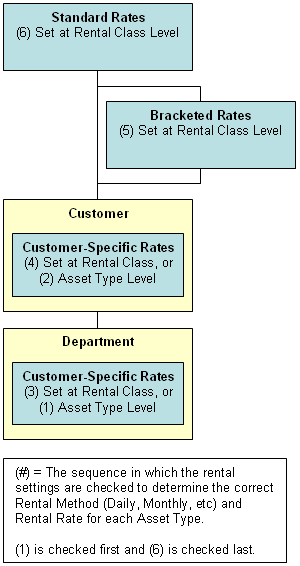
Typicaly, starting from the top, Standard Rates are the highest rate charged for rental. As more specific rates are applied, the rental charged is usualy discounted.
Asset Type Settings
Asset Type Descriptions
TrackAbout classifies assets in a three-level hierarchy of Category, Group, and Type. Most TrackAbout customers have a fourth level of classification, Product Code that falls below the asset type. The asset classification scheme, from least to most specific is
- Category
- Group
- Type
- Product Code
The rental invoice displays these asset type descriptions under the Rental Summary section of the invoice. How the asset description is displayed is dependent upon whether the Description on Rental Bill field is populated in the Edit Type page of the asset classification.
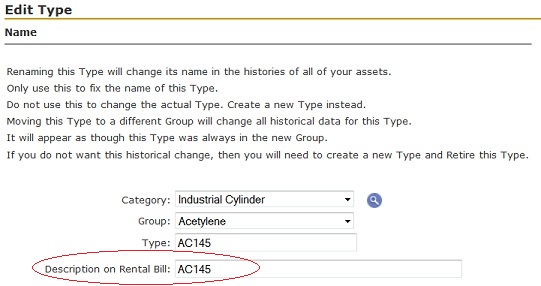
If the Description on Rental Bill field is left blank, the Item field on the rental invoice will display the asset description like this:
Rental Class // Category :: Group :: Type
Asset Type Replacement Price
TrackAbout allows a customer to assign a dollar value to an asset type. This value is referred to as the replacement cost.
This replacement cost is calculated by the asset end count on the rental invoice multiplied by the replacement cost for the asset type and a total value of assets is generated. This value can be found near the bottom of the TrackAbout rental invoice.
The text that is displayed on the rental invoice showing
the replacement cost can be edited per the customer’s
request. At this time, a TrackAbout representative must
make this change.
Asset Agreements (Leases)
Asset Agreements are an agreement between you and your customer to not charge a customer rent for a specific type and quantity of assets for a specified amount of time. This has the effect of reducing a customer’s monthly rental by the quantity of assets on the asset agreement.
For more info on Asset Agreements, see Asset Agreements.
Customer-Owned Offsets
For more information about Customer Owned Offsets go to Customer Owned Asset Agreements
Flat Fees
TrackAbout allows for adding a flat fee for each customer in addition to, or in place of, regular rent. There are several ways to apply flat fees, such as using flat fees for hazmat or delivery charges, or for flat negotiated rental rates. See Flat Fees for more information about setting up and editing Flat Fees.
Sales Tax
TrackAbout processes sales tax data imported from the existing accounting system.
Click here for more information on Sales Tax
Billing Addresses
Customer billing and shipping address are typically set in TrackAbout from a data import from a business/accounting software system. There are four ways which billing addresses can be set for a customer:
- Set the Billing Address to be the same as the Shipping Address.
- Set a special Billing Address for each customer as well as a Shipping Address.
- Pull the Billing Address from the Parent Account.
- Pull the Billing Address from another customer in TrackAbout that is not the Parent.
Contact TrackAbout if any billing addresses appear to be incorrect.
Rental Calculation Methods
Trackabout provides a variety of ways to calculate rental. These methods can be viewed in more depth on the Rental Rates and Methods page.
Rental Bill Configuration
There are several options for configuring how Rental Bills will be created and displayed through Trackabout. See the information on Rental Bill Configuration for more information.
Minimum Billable Amount
There may be instances when the costs of processing, printing, and mailing a bill are more than the amount being billed. In these situations, it may be decided that rental bills below a certain dollar threshold will be handled differently to ensure that the charges on all bills are worth the costs of billing. In TrackAbout, this threshold is called a Minimum Billable Amount. If it is determined that a minimum billable amount will be used, contact TrackAbout to configure the options.
Determine the dollar amount to set as the minimum. If the minimum is set at $0, the effect is that there is no minimum. Consequently, the customer would always be billed when there are rental charges, even if the rental charges for the month are $.01.
Options when rental bill is below minimum:
- Do Not Bill Ever - If this option is selected, the customer will never be billed for rental amounts which fall below the set minimum for the month. Below minimum bills will be forgiven.
- Round Up To Minimum And Bill Customer - Given this option, bills which fall below the minimum will be rounded up to the minimum and the customer will be billed for the minimum amount. In this scenario, the rental bill will show the customer’s rental for the month plus an additional fee that looks like a flat fee. This additional fee is added to make up the difference between what the customer was actual charged for rental and the minimum billable amount. So, for example, if the customer is charged $2 for the month, and the minimum billable amount is $5, there will be a flat fee of $3 added to the bill to bring the bill up to the minimum.
If this option is chosen, TrackAbout will need an accounting code for the flat fee that’s added, as well as a tax category for this fee.
- Do Not Bill And Roll Into Next Bill - This option will cause bills which fall below the minimum to be rolled into the subsequent month. For example, if the minimum billable amount is $5 and the customer’s rental is $3 for January, that $3 will be rolled into February.
This $3 amount will show up on the February rental bill as Previous Unbilled Balance. It will look like a flat fee with no detail included on the bill. Furthermore, the amount that is rolled over will not appear in the accounting integration until it is actually billed.
It is possible that unbilled amounts may be rolled into another year, as below minimum amounts in December will be rolled into January.
Rental Bill Hold and Release
Some customers’ bills may require special handling each month. For example, there may be a need to review a particular customer’s bill before mailing. Another customer’s bill may be printed locally and hand delivered, or a customer may require a special purchase order number to be verbally given each month for their rental. The TrackAbout Rental Module allows a hold status to be placed on customers that require any kind of special handling each month. Placing customers on hold will cause their bills to go into hold status. Held bills can then be easily reviewed and released from hold as part of a rental run.
NOTE: TrackAbout will automatically put a bill in a hold status when a customer’s address is missing.
Click here for more information on Rental Bill Hold and Release
Generating and Reviewing Rental Bills
Many clients opt to create personalized Standard Operating Procedures (SOPs) to guide them through the steps of generating, reviewing, and exporting rental bills from Trackabout. Please review the page Generating Rental Bills for information about the process of creating and reviewing rental bills.
Integration
The TrackAbout Rental Module was built to integrate with existing business systems.
Standard API (Application Programming Interface)
If creating a new integration, TrackAbout recommends using our standard APIs available here:
https://www.trackabout.com/api/docs
You will likely want to:
- Pass in customer information via the Customers APIs
- Pull back rental information via the Rental APIs
Optionally you may also want to
- Pass in item/product information via the Classifications APIs
- Exchange orders to and from TrackAbout via the Orders APIs
- Get the balances of assets at a specific customer via the Customers/Balances API
TECSYS Integration
TrackAbout is partnered with TECSYS (http://www.tecsys.com) to provide a total solution to gas and welding distributors.
Here is a link to more information on TECSYS Integration
Generic Integration
TrackAbout can also export flat files that can be picked up via TrackAbout hosted FTP or SFTP sites and imported into a business system.
Contact TrackAbout support for more information on other integrations
Rental Troubleshooting
See page Rental Troubleshooting


