Please visit our new TrackAbout Knowledge Base at https://supportkb.trackabout.com for the most-up-to-date documentation on TrackAbout and TrackAbout Mobile.
Difference between revisions of "Bluetooth Barcode and RFID Scanners"
(TrackAbout Mobile was listed as version 355 rather than 335) |
|||
| (9 intermediate revisions by one other user not shown) | |||
| Line 10: | Line 10: | ||
<h3>Using a Bluetooth HID Scanner with TrackAbout Mobile 7 (Android)</h3> | <h3>Using a Bluetooth HID Scanner with TrackAbout Mobile 7 (Android)</h3> | ||
<p>Before you can start using Bluetooth HID scanners with TrackAbout Mobile 7 (Android), you'll need:</p> | <p>Before you can start using Bluetooth HID scanners with TrackAbout Mobile 7 (Android), you'll need:</p> | ||
| + | |||
| + | <div class="indenty"> | ||
<ul> | <ul> | ||
<li> | <li> | ||
| − | <p>Both a scan prefix code and a scan suffix code</p> | + | <p>'''Both a scan prefix code and a scan suffix code'''</p> |
<p class="note">The codes let TrackAbout Mobile 7 (Android) accurately read the data from a Bluetooth HID scanner. </p> | <p class="note">The codes let TrackAbout Mobile 7 (Android) accurately read the data from a Bluetooth HID scanner. </p> | ||
<p>TrackAbout Support can help you create the codes (just give them a shout) and then will setup the codes in your TrackAbout system. You'll then program the codes into the individual scanners when you pair them with a mobile device running TrackAbout Mobile 7 (Android).</p> | <p>TrackAbout Support can help you create the codes (just give them a shout) and then will setup the codes in your TrackAbout system. You'll then program the codes into the individual scanners when you pair them with a mobile device running TrackAbout Mobile 7 (Android).</p> | ||
| Line 18: | Line 20: | ||
</li> | </li> | ||
<li> | <li> | ||
| − | <p>A Bluetooth scanner that supports HID Communication</p> | + | <p>'''A Bluetooth scanner that supports HID Communication'''</p> |
<p class="note">HID (or Human Interface Device) is a technical standard that lets devices talk to each other. When looking for a device, look for Bluetooth HID, HID Compliant, or just HID in the device's specifications.</p> | <p class="note">HID (or Human Interface Device) is a technical standard that lets devices talk to each other. When looking for a device, look for Bluetooth HID, HID Compliant, or just HID in the device's specifications.</p> | ||
</li> | </li> | ||
<li> | <li> | ||
| − | <p>An Android phone or tablet </p> | + | <p>'''An Android phone or tablet''' </p> |
| − | <p class="warning | + | <p class="warning">The iPhone/iOS version of TrackAbout Mobile 7 does not support Bluetooth HID devices at this time.</p> |
</li> | </li> | ||
<li> | <li> | ||
| − | <p> TrackAbout Mobile 7. | + | <p> '''TrackAbout Mobile 7.335 (or later) for Android'''</p> |
</li> | </li> | ||
</ul> | </ul> | ||
| − | + | </div> | |
<p>When all that's in place, you're ready to set up TrackAbout Mobile 7 (Android) to use a Bluetooth HID scanner:</p> | <p>When all that's in place, you're ready to set up TrackAbout Mobile 7 (Android) to use a Bluetooth HID scanner:</p> | ||
<div> | <div> | ||
<p>Pair the scanner with your Android device following the instructions provided with the scanner and install any configuration apps that came with the scanner as recommended by the manufacturer.</p> | <p>Pair the scanner with your Android device following the instructions provided with the scanner and install any configuration apps that came with the scanner as recommended by the manufacturer.</p> | ||
| − | + | <div class="note"> | |
| − | + | <p>If you get a notification to <i>Configure physical keyboard</i> when you pair the scanner, tap the notification and make sure <b>Use on-screen keyboard</b> is on. | |
| − | + | [[File:Image277.png|center]] | |
| − | + | <br/> | |
| − | [[File:Image277.png|center]] | ||
| − | |||
| − | |||
| − | |||
[[File:Image278.png|center]] | [[File:Image278.png|center]] | ||
| − | + | ||
</p> | </p> | ||
<p> </p> | <p> </p> | ||
| + | </div> | ||
</div> | </div> | ||
<div> | <div> | ||
| Line 52: | Line 51: | ||
<div> | <div> | ||
<p>Once the scanner is paired and configured to use the correct prefix and suffix codes, you'll need to tell TrackAbout Mobile 7 that you're using an HID device for scanning. </p> | <p>Once the scanner is paired and configured to use the correct prefix and suffix codes, you'll need to tell TrackAbout Mobile 7 that you're using an HID device for scanning. </p> | ||
| − | <p>If you're setting up a barcode scanner, TrackAbout Mobile 7 should recognize the device by default. If it doesn't, make sure TrackAbout Mobile 7 is not set to RFID scanning mode by doing the following: Tap <b>MENU</b>, then <b>Settings</b>. In the <i>Scan Check</i> section, tap <b>RFID settings</b>, then <b>RFID Device Type</b>. If RFID Device Type is anything other than NONE, tap to select <b>None</b> and then tap <b>DONE</b>. | + | <p>If you're setting up a barcode scanner, TrackAbout Mobile 7 should recognize the device by default. </p> |
| + | |||
| + | <div class="Exampley">If it doesn't, make sure TrackAbout Mobile 7 is not set to RFID scanning mode by doing the following: Tap <b>MENU</b>, then <b>Settings</b>. In the <i>Scan Check</i> section, tap <b>RFID settings</b>, then <b>RFID Device Type</b>. If RFID Device Type is anything other than NONE, tap to select <b>None</b> and then tap <b>DONE</b>. | ||
[[File:Image274.png|center]] | [[File:Image274.png|center]] | ||
| − | + | </div> | |
</div> | </div> | ||
<p> If you're setting up an RFID scanner, you'll need to set TrackAbout Mobile 7's RFID Device Type to RFID HID:</p> | <p> If you're setting up an RFID scanner, you'll need to set TrackAbout Mobile 7's RFID Device Type to RFID HID:</p> | ||
<div class="indenty"> | <div class="indenty"> | ||
| − | <ol | + | <ol> |
<li> | <li> | ||
<p> | <p> | ||
| − | <p>In TrackAbout Mobile 7, open the <b>MENU</b>.</p> | + | <p>In TrackAbout Mobile 7, open the <b>MENU</b>.</p> |
| − | |||
| − | |||
[[File:Image267.png|center]] | [[File:Image267.png|center]] | ||
</p> | </p> | ||
| Line 97: | Line 96: | ||
<li> | <li> | ||
<p> | <p> | ||
| − | + | Tap <b>DONE</b>.<br/> | |
| − | |||
| − | |||
[[File:Image272.png|center]] | [[File:Image272.png|center]] | ||
| − | |||
</p> | </p> | ||
</li> | </li> | ||
</ol> | </ol> | ||
</div> | </div> | ||
Latest revision as of 09:16, 8 December 2022
Bluetooth Barcode and RFID Scanner Support
Scanning assets with TrackAbout Mobile 7 using your phone's built-in camera is fast and reliable, but there are times when having another scanning method might fit your workflow better. That's why TrackAbout Mobile 7 (Android only) supports Bluetooth barcode and RFID scanners.

Bluetooth barcode and RFID scanners are widely available from numerous manufacturers, with models ranging from inexpensive on up, depending on features. Any basic scanner that supports HID communication and can pair with an Android phone should work with TrackAbout Mobile 7 (Android only). However, due to the vast array of scanners out there, we can't guarantee that any particular make/model is 100% compatible with TrackAbout or will meet your business needs.
Using a Bluetooth HID Scanner with TrackAbout Mobile 7 (Android)
Before you can start using Bluetooth HID scanners with TrackAbout Mobile 7 (Android), you'll need:
-
Both a scan prefix code and a scan suffix code
The codes let TrackAbout Mobile 7 (Android) accurately read the data from a Bluetooth HID scanner.
TrackAbout Support can help you create the codes (just give them a shout) and then will setup the codes in your TrackAbout system. You'll then program the codes into the individual scanners when you pair them with a mobile device running TrackAbout Mobile 7 (Android).
In most cases, you'll only need one prefix code and one suffix code. Each Bluetooth HID scanner you put into service can use the same two codes.
-
A Bluetooth scanner that supports HID Communication
HID (or Human Interface Device) is a technical standard that lets devices talk to each other. When looking for a device, look for Bluetooth HID, HID Compliant, or just HID in the device's specifications.
-
An Android phone or tablet
The iPhone/iOS version of TrackAbout Mobile 7 does not support Bluetooth HID devices at this time.
-
TrackAbout Mobile 7.335 (or later) for Android
When all that's in place, you're ready to set up TrackAbout Mobile 7 (Android) to use a Bluetooth HID scanner:
Pair the scanner with your Android device following the instructions provided with the scanner and install any configuration apps that came with the scanner as recommended by the manufacturer.
If you get a notification to Configure physical keyboard when you pair the scanner, tap the notification and make sure Use on-screen keyboard is on.


After pairing, program the scanner to use the scanning prefix code and suffix code.
Depending on the make and model of scanner, you'll do this through the mobile device using a manufacturer-provided app or by manually scanning in the codes. In either case, follow the manufacturer's instructions to program the prefix and suffix codes. For assistance with programming your device contact TrackAbout Support.
Once the scanner is paired and configured to use the correct prefix and suffix codes, you'll need to tell TrackAbout Mobile 7 that you're using an HID device for scanning.
If you're setting up a barcode scanner, TrackAbout Mobile 7 should recognize the device by default.

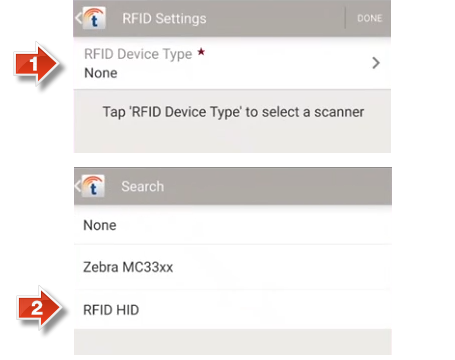
If you're setting up an RFID scanner, you'll need to set TrackAbout Mobile 7's RFID Device Type to RFID HID:
-
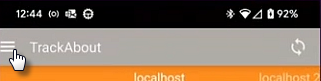
In TrackAbout Mobile 7, open the MENU.
-
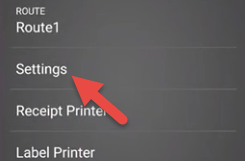
Tap Settings.
-
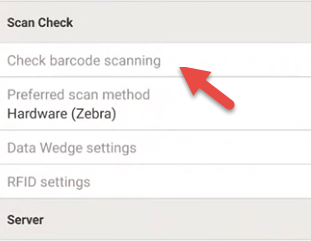
Tap RFID settings in the Scan Check section.
-
Select RFID HID as the RFID device type.
-
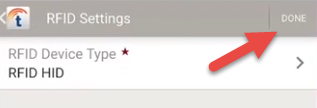
Tap DONE.