
Please visit our new TrackAbout Knowledge Base at https://supportkb.trackabout.com for the most-up-to-date documentation on TrackAbout and TrackAbout Mobile.
Difference between revisions of "Use States"
| Line 10: | Line 10: | ||
As an asset moves through its' cycle, its' Use State changes after almost every action. Some actions do not change the Use State as it would not be appropriate to do so. | As an asset moves through its' cycle, its' Use State changes after almost every action. Some actions do not change the Use State as it would not be appropriate to do so. | ||
| + | |||
| + | [[File:Use State Process Example.png|800px]] | ||
| + | |||
| + | In this example, you can see that each action results in a Use State that stays on the asset until the next action occurs. Filled goes to Ready for Use, Load Truck goes to Committed for Delivery and so on. Add New and Unload Truck are different though, in that they each set a Use State of "No Change" on the assets. This is because these actions do not change the state of the asset- they mostly just set the location. Locate is another action that generally has a No Change Use State. When an asset goes through an action that sets a Use State of No Change, the asset will automatically keep the previous Use State that was set on it. | ||
===Finding Use States=== | ===Finding Use States=== | ||
Revision as of 17:38, 31 December 2014
What are Use States?
A Use State describes the status or condition of an asset. Sometimes called a Status, a Use State is assigned to every active, barcoded asset in TrackAbout, based on the last action that happened to that asset. For example, assets that were delivered to a customer would have a use state of "Delivered", while assets that had just been filled or cleaned would have a use state of "Ready for Use".
Why use Use States?
Used with the reports available in TrackAbout, use states provide another level of insight into your asset inventory by showing how many assets are in each step of the asset life cycle. In some TrackAbout modules, use states are also used to force assets to go through a specific process by by only allowing assets with certain use states to be valid for certain actions.
How Assets Change Use States
As an asset moves through its' cycle, its' Use State changes after almost every action. Some actions do not change the Use State as it would not be appropriate to do so.

In this example, you can see that each action results in a Use State that stays on the asset until the next action occurs. Filled goes to Ready for Use, Load Truck goes to Committed for Delivery and so on. Add New and Unload Truck are different though, in that they each set a Use State of "No Change" on the assets. This is because these actions do not change the state of the asset- they mostly just set the location. Locate is another action that generally has a No Change Use State. When an asset goes through an action that sets a Use State of No Change, the asset will automatically keep the previous Use State that was set on it.
Finding Use States
The use state of an asset can be viewed on both the TrackAbout website and in the asset lookup feature on any of the TrackAbout Mobile platforms (TAMobile 6, TAMobile Android, TAMobile iOS).
Use States on the Website


Use States on Mobile Platforms
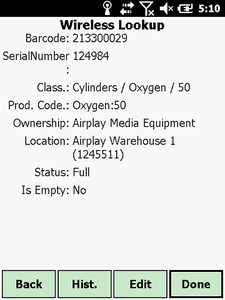
Use State shown as Status in TAMobile 6
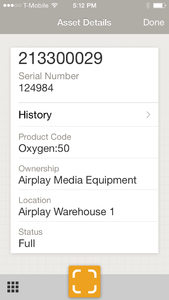
Use State shown as Status in TAMobile iOS

